


Apple Pay Developer Guidelines
1. Танилцуулга
Энэхүү гарын авлага нь Apple Pay-ийг вэб болон аппликейшн дээр интеграц хийхэд зориулсан дэлгэрэнгүй заавар бөгөөд домэйн баталгаажуулалт, төлбөр боловсруулах үйл явц, мөн аюулгүй байдлын шаардлагууд багтана.
2. Тохиргоо ба Интеграц
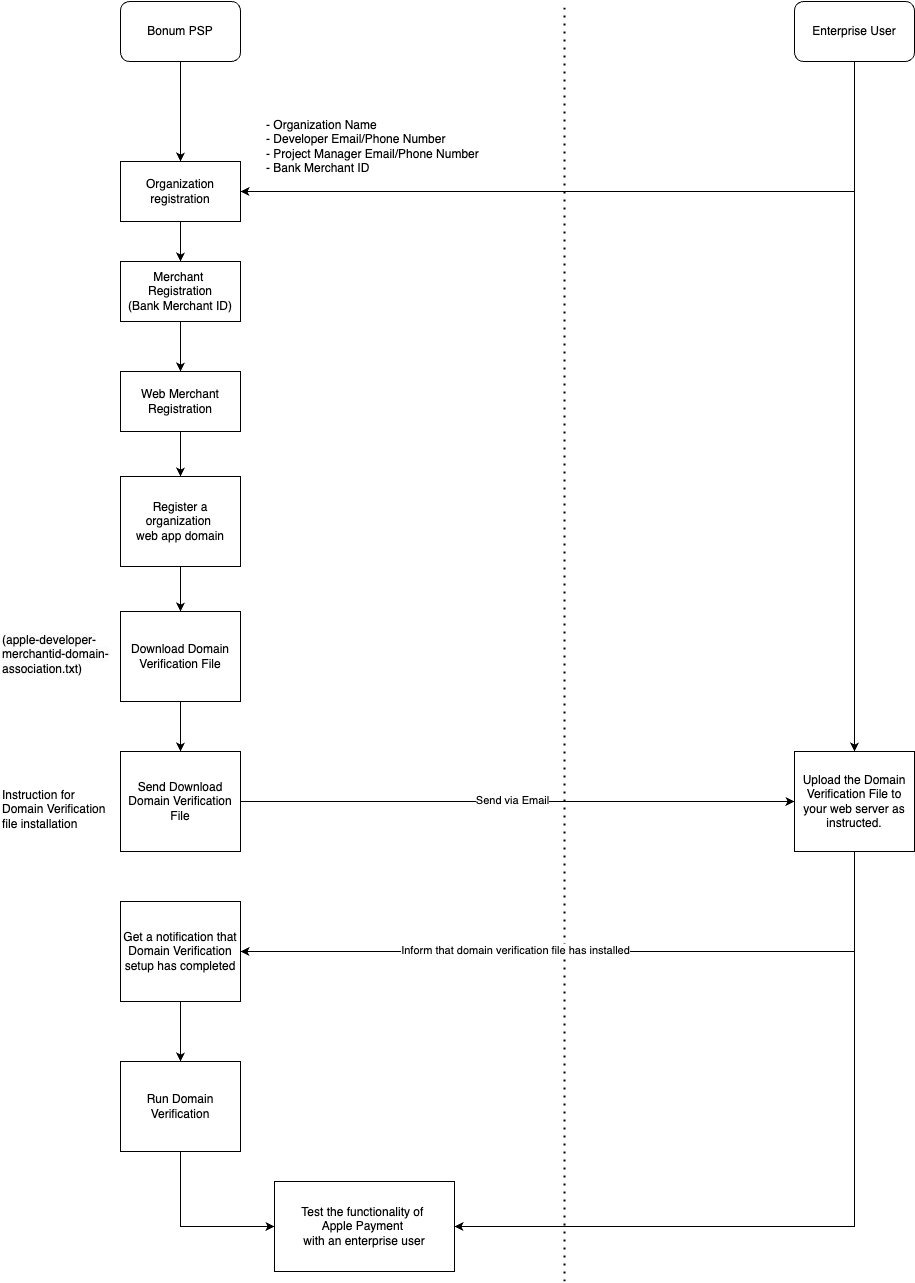
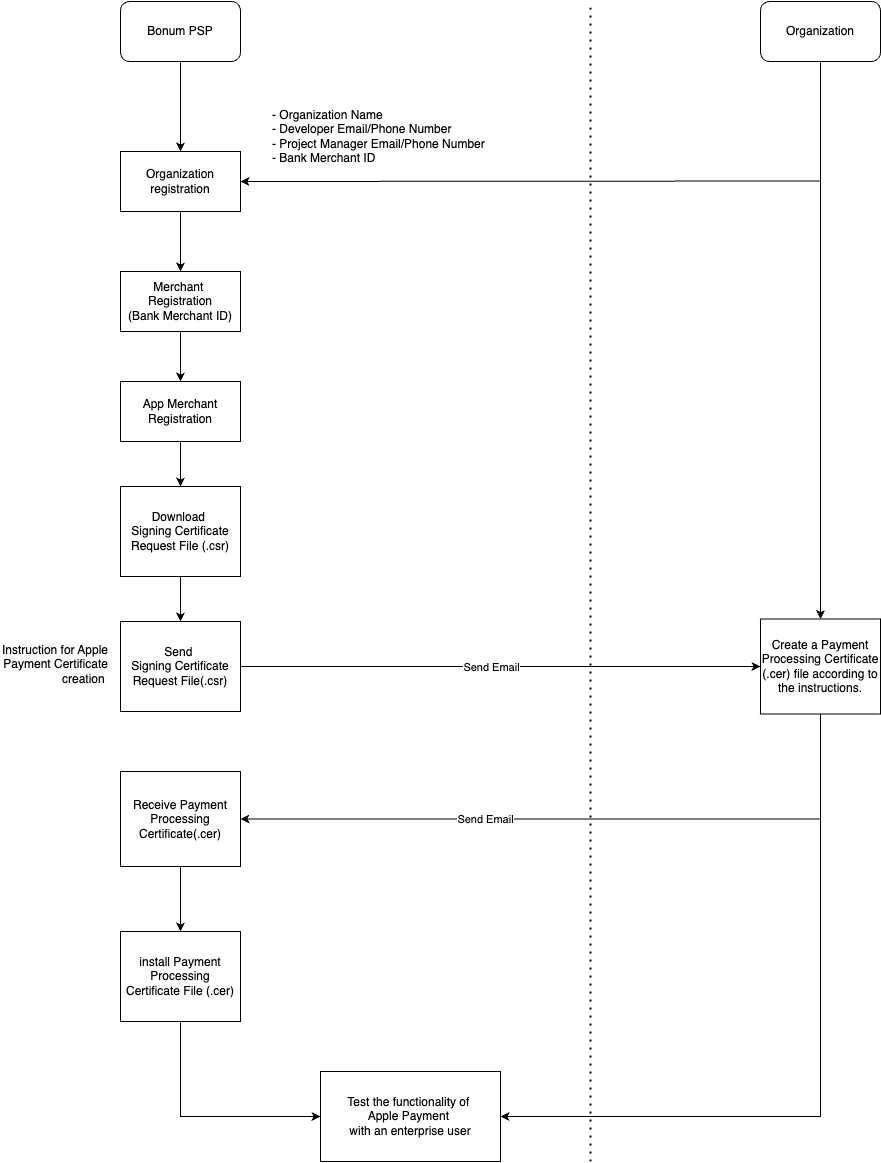
Бид e-commerce вэб болон iOS аппликейшнуудад Apple Pay-ийгдэмжин ажилладаг. Дараах диаграммууд нь Bonum болон Мерчант талын бүх үйлдлүүдийг харуулна:
1. Хэрэв вэб аппликейшнд интеграц хийх шаардлагатай бол:
3. Вэб Апп Интеграц
3.1 Домэйн Баталгаажуулалт

Домэйн баталгаажуулалт нь вэбсайт дээр Apple Pay-ийг идэвхжүүлэхэд зайлшгүй шаардлагатай алхам юм. Энэ нь таныг тухайн домэйны эзэмшигч мөн эсэхийг баталгаажуулж, Apple Pay-ээр төлбөр хүлээн авах эрхтэй гэдгийг батална.
Эхлэхийн өмнө дараах зүйлсийг хангасан эсэхийг шалгана уу:
- Вэб сервер эсвэл хостинг орчинд файл байршуулах эрх.
- Apple Pay интеграцад ашиглах хүчинтэй домэйн нэр.
Алхам 1: Баталгаажуулах файл авах
- Bonum-аас файл өгнө (Файлын нэр: apple-developer-merchantid-domain-association)
Алхам 2: Файлыг вэб сервер дээр байршуулах
1. Шаардлагатай директор үүсгэх:
Вэб серверийнхээ үндсэн директорт .well-known нэртэй директор үүсгэнэ үү (хэрэв байхгүй бол).
Жишээ зам:
https://yourdomain.com/.well-known/
2. Файлыг байршуулах:
Татаж авсан
apple-developer-merchantid-domain-association файлыг
.well-known директор дотор байршуулна уу.
Файл нь дараах URL-аар нийтэд нээлттэй байгаа эсэхийг шалгана уу:
https://yourdomain.com/.well-known/apple-developer-merchantid-domain-association
3. Content-Type:
Apple Pay вэб мерчант баталгаажуулалтын файлыг хөтөч эсвэл HTTP хүсэлтээр хандахад text/plain Content-Type-тай үйлчлэх ёстой.
4. Файл зөв байрласан эсэхийг шалгах:
Хөтчийг нээж файлын URL руу очно уу. Файлын агуулга энгийн текст хэлбэрээр харагдах ёстой.
Алхам 3: Бидэнд мэдэгдэх
- Файлыг байршуулсны дараа боломжтой холбоо барих сувгаар бидэнд мэдэгдэнэ үү.
Алхам 4: Apple-ийн домэйн баталгаажуулалт
Манай систем Apple-тай холбогдож таны домэйнийг баталгаажуулна.
Энэ процесс ихэвчлэн хэдхэн минутын дотор дуусдаг бөгөөд баталгаажуулалт амжилттай болсны дараа мерчантуудад мэдэгдэнэ.
Асуудал 1: Файл олдсонгүй
Шалтгаан:
apple-developer-merchantid-domain-association файл
.well-known директорт зөв байршаагүй байна. Шийдэл: Файлын замыг шалгаж, файл URL-аар хандах боломжтой эсэхийг шалгана уу.
Асуудал 2: Хандалт хориглогдсон
Шалтгаан: Таны сервер
.well-known
директор эсвэл файл руу хандах эрхийг хязгаарласан байна.
Шийдэл: Серверийн зөвшөөрлийг шалгаж,
.well-known директор болон файл нийтэд нээлттэй эсэхийг шалгана уу.
3.2 Вэб Апп Хэрэгжүүлэлт
APPLE PAY > PSP > Web App
- Merchant ID (Merchant ID-г Bonum PSP-ээс өгсөн байх ёстой)
- Merchant Key (Merchant Key-г Bonum PSP-ээс өгсөн байх ёстой)
APPLE PAY > PSP > Төслийн бүтэц
- index.html - Apple Pay товч болон JavaScript интеграц агуулсан frontend. B, C, D хэсгийг үзнэ үү.
- server.js - Apple Pay мерчант баталгаажуулалт болон төлбөр боловсруулалтыг зохицуулах backend сервер (Node.js Express-тэй). E хэсгийг үзнэ үү.
- package.json - Backend-д шаардлагатай хамаарлуудын жагсаалт. npm init -y командаар үүсгээд, server.js-д шаардагдах хамаарлуудыг npm install express body-parser axios cors командаар суулгана уу.
- package-lock.json - Хамаарлын хувилбаруудыг түгжих бөгөөд npm install команд ажиллахад автоматаар үүснэ.
Web App > Frontend Integration
Тэмдэглэл: Apple Pay товчны хэрэгжүүлэлт
<head>
  <title>Apple Pay Integration Example</title>
  <!-- Apple Pay SDK -->
  <script src="https://applepay.cdn-apple.com/jsapi/1.latest/apple-pay-sdk.js"></script>

  <!-- Apple Pay button styling -->
  <style>
      apple-pay-button {
          --apple-pay-button-width: 140px;
          --apple-pay-button-height: 30px;
          --apple-pay-button-border-radius: 5px;
          --apple-pay-button-padding: 5px 0px;
      }
  </style>
</head>


  <!-- Apple Pay Button -->
  <apple-pay-button
    buttonstyle="black"
    type="buy"
    locale="en-US"
    id="applePayButton"
  ></apple-pay-button>

  <script>
    function isMacOSSafari() {
      const userAgent = navigator.userAgent;
      return /Macintosh/i.test(userAgent) && /Safari/i.test(userAgent) && !/Chrome|CriOS|Edg/i.test(userAgent);
    }
    // Step 1: Attach a click event listener to the Apple Pay button.
    const applePayButton = document.getElementById('applePayButton');
    if (!isMacOSSafari()) {
      applePayButton.addEventListener('click', () => {
        if (window.ApplePaySession && ApplePaySession.canMakePayments()) {
          startApplePaySession(); // Proceed to initialize Apple Pay session
        } else {
          console.log('Apple Pay is not available on this device.');
          alert('Apple Pay is not supported on your browser or device.');
        }
      });
    } else {
      applePayButton.style.display = 'none'; // Hide Apple Pay button on unsupported browsers
      console.log('Unsupported browser for Apple Pay.');
    }
Web App > Frontend Integration
Тэмдэглэл:
1. "REPLACE_YOUR_MERCHANT_IDEN_TIFIER_HERE"-г өөрийн merchant ID-аар солино уу.
2. "total" нь төлөх дүнг илэрхийлнэ. Төлбөрийн дэлгэрэнгүй мэдээллийг задлахын тулд "lineItems"-ийг ашиглана уу.
3.
Шинэ Apple Pay session үүсгэнэ.
function startApplePaySession() {
// Merchant-specific information
const merchantIdentifier = 'REPLACE_YOUR_MERCHANT_IDENTIFIER_HERE'; // Replace with your actual merchant ID

// Payment request details
const paymentRequest = {
  countryCode: 'MN', // Country code for Mongolia
  currencyCode: 'MNT', // Mongolian Tugrik
  supportedNetworks: ['visa', 'masterCard', 'amex'], // Supported card networks
  merchantCapabilities: ['supports3DS'], // Security capabilities
  displayName: 'Your Merchant Name', // Name displayed on the payment sheet
  total: {
    label: 'Your Merchant Name', // Total summary label
    amount: '100', // Total amount (in whole numbers for MNT (100.00 is invalid, 100 - is valid))
  },
  lineItems: [ //optional
    { label: 'Product A', amount: '200' },
    { label: 'Discount', amount: '-100' },
  ],
  applicationData: btoa(merchantIdentifier), // Base64 encoded merchant ID
};

// Ensure amount is a whole number for Mongolian Tugrik (MNT)
if (paymentRequest.currencyCode === 'MNT' && !Number.isInteger(Number(paymentRequest.total.amount))) {
  alert('Amounts in Mongolian Tugrik (MNT) must be whole numbers without decimal points.');
  return;
}

// Create a new Apple Pay session
const session = new ApplePaySession(3, paymentRequest);

// Step 3: Validate the merchant during the payment session
session.onvalidatemerchant = async (event) => {
  try {
    const response = await fetch('https://psp.bonum.mn/api/merchant/validate', {
      method: 'POST',
      headers: { 'Content-Type': 'application/json' },
      body: JSON.stringify({ validationURL: event.validationURL }),
    });
    const merchantSession = await response.json();
    session.completeMerchantValidation(merchantSession);
  } catch (error) {
    console.error('Merchant validation failed:', error);
    session.abort();
  }
};
Web App > Frontend Integration
Тэмдэглэл: Төлбөрийн зөвшөөрлийг зохицуулах.
// Step 4: Handle payment authorization
session.onpaymentauthorized = async (event) => {
    const token = event.payment.token;

    try {
      //frontend will send token to its backend. merchant can customize to their needs.
      const response = await fetch('http://localhost:3000/api/payment/authorize', {
        method: 'POST',
        headers: { 'Content-Type': 'application/json' },
        body: JSON.stringify({ token, orderId: 'REPLACE_ORDER_ID_HERE' }),
      });
      const result = await response.json();

      // merchant backend response parsing, customize to your needs.
      if (result.success) {
        session.completePayment(ApplePaySession.STATUS_SUCCESS); //mandatory
        ///alert("Payment succeeded: $ {result.description}");
      } else {
        session.completePayment(ApplePaySession.STATUS_FAILURE); //mandatory
        // alert("Payment failed: $ {result.description}"");
      }
    } catch (error) {
      console.error('Error processing payment:', error);
      session.completePayment(ApplePaySession.STATUS_FAILURE);
      alert('Unexpected error occurred while processing payment.');
    }
  };

  // Step 5: Handle payment cancellation
  session.oncancel = () => {
    console.log('Payment was canceled by the user.');
    alert('Payment was canceled.');
  };

  // Step 6: Begin the session
  session.begin();
}
Web App > The backend Integration
Тэмдэглэл: Төлбөрийн зөвшөөрлийг зохицуулж төлбөрийг боловсруулах.
"REPLACE_YOUR_MERCHANT_KEY"-г өөрийн merchant key-ээр солино уу.
const express = require('express');
const bodyParser = require('body-parser');
const axios = require('axios');
const cors = require('cors');
const app = express();
const PORT = 3000;

// Allow specific origins (replace "http://example.com" with your frontend's URL)
app.use(cors({
  origin: 'https://psp.bonum.mn', // Allow this specific origin
}));

// Middleware: Parses incoming JSON request bodies
app.use(bodyParser.json());

/**
 * Endpoint to process payment authorization.
 * The client sends a token and an orderId, which are forwarded to the PSP (Payment Service Provider).
 */
app.post('/api/payment/authorize', async (req, res) => {
  const { token, orderId, branchId } = req.body;

  // Step 1: Validate incoming request data
  if (!token || !orderId) {
    return res.status(400).json({
      success: false,
      message: 'Missing token or orderId',
    });
  }

  try {
    // Step 2: Forward the payment data to the PSP
    const response = await axios.post(
      'https://psp.bonum.mn/api/v2/payment/process', // Bonum PSP V2 endpoint
      {
        token,          // Payment token received from Apple Pay
        order_id: orderId, // Merchant invoice/order id
        branch_id: branchId, // Optional merchant branch/location id
      },
      {
        headers: {
          'Content-Type': 'application/json',
          'x-merchant-key': 'REPLACE_YOUR_MERCHANT_KEY', // Replace with your actual merchant key
        },
      }
    );
        console.log('resp', response.data);
    // Step 3: V2 returns PENDING immediately - call awaitUrl to get the terminal status
    // This is required to close the Apple Pay session with the correct result
    const { paymentId, awaitUrl } = response.data;
    const awaitResp = await axios.get(
      'https://psp.bonum.mn' + awaitUrl,
      { headers: { 'x-merchant-key': 'REPLACE_YOUR_MERCHANT_KEY' } }
    );
    const finalStatus = awaitResp.data.status; // 'AUTHORIZED' or 'FAILED'
    res.json({
      success: finalStatus === 'AUTHORIZED',
      paymentId,
      status: finalStatus,
      failureReason: awaitResp.data.failureReason ?? null,
    });
  } catch (error) {
    console.error('Error processing payment:', error.message);

    // Step 4: Handle errors from the PSP or network issues
    if (error.response) {
      // Errors returned directly by the PSP
      return res.status(error.response.status).json({
        success: false,
        paymentId: null,
        status: 'FAILED',
        failureReason: error.response.data.message ?? 'Payment processing error',
      });
    }

    // Step 5: Handle unexpected or generic errors (network, server, etc.)
    res.status(500).json({
      success: false,
      paymentId: null,
      status: 'FAILED',
      failureReason: 'Unexpected error occurred while processing payment.',
    });
  }
});

// Start the Express server
app.listen(PORT, () => {
  console.log("Server is running on http://localhost:" +PORT);
});
Web App > The backend integration
Тэмдэглэл: Төлбөрийн статусыг шалгахын тулд /api/v2/payments/lookup/by-order-id API-г ашиглаж болно.
"REPLACE_YOUR_MERCHANT_KEY"-г өөрийн merchant key-ээр солино уу.
Энэ API дуудлагыг backend талд гүйцэтгэх ёстой.
func checkPaymentByOrderId(orderId: String) {

  let manager = AFHTTPSessionManager()
  manager.requestSerializer = AFJSONRequestSerializer()
  manager.responseSerializer = AFJSONResponseSerializer()
  manager.responseSerializer.acceptableContentTypes = manager.responseSerializer.acceptableContentTypes?.union(["application/json"])
  //TODO: set Merchant Key here. Bonum will provide Merchant Key.
  manager.requestSerializer.setValue("SET-YOUR-MERCHANT-KEY-HERE", forHTTPHeaderField: "x-merchant-key")


  //Demo URL. Note: This URL charges the bank transaction. Please use small amount when you test
  var urlString = "https://testpsp.bonum.mn/api/v2/payments/lookup/by-order-id"
  //Production URL. When you push your Build to the production
  //var urlString = "https://psp.bonum.mn/api/v2/payments/lookup/by-order-id"

  urlString = urlString + "?orderId=" + orderId
  // Convert the JSON object to a JSON string
  print("API Url: \(urlString)")

  manager.get(urlString,
              parameters: nil,
              headers: nil, progress: { progress in
      print("Download progress: \(progress.totalUnitCount)")
  }, success: { task, responseObject in
      print("Transactions for Order ID: \(orderId)")
      print("GET response: \(responseObject ?? "No response")")
  }, failure: { task, error in
      print("Error on GET request: \(error.localizedDescription)")
  })
}
Web App > The backend integration
Тэмдэглэл:
"status": "FAILED"
нь гүйлгээ ямар нэг шалтгаанаар амжилтгүй болсныг илэрхийлнэ.
Тэмдэглэл:
"status": "AUTHORIZED"
нь гүйлгээ амжилттай боловсруулагдсаныг илэрхийлнэ.
[
    {
      "paymentId": "550e8400-e29b-41d4-a716-446655440000",
      "orderId": "9876543",
      "amount": 5000,
      "status": "FAILED",
      "failureReason": "Insufficient funds",
      "createdAt": "2025-01-24T03:22:03.135Z"
    },
    {
      "paymentId": "7b12c830-f9d2-4a3e-b101-885544220011",
      "orderId": "9876543",
      "amount": 5000,
      "status": "AUTHORIZED",
      "providerReference": "BNM-2024-00123",
      "createdAt": "2025-01-24T03:22:03.135Z"
    }
]
4. iOS Апп Нэгтгэл
4.1 Apple Payment Сертификат Үүсгэх
APPLE PAY > PSP > Payment Certificate
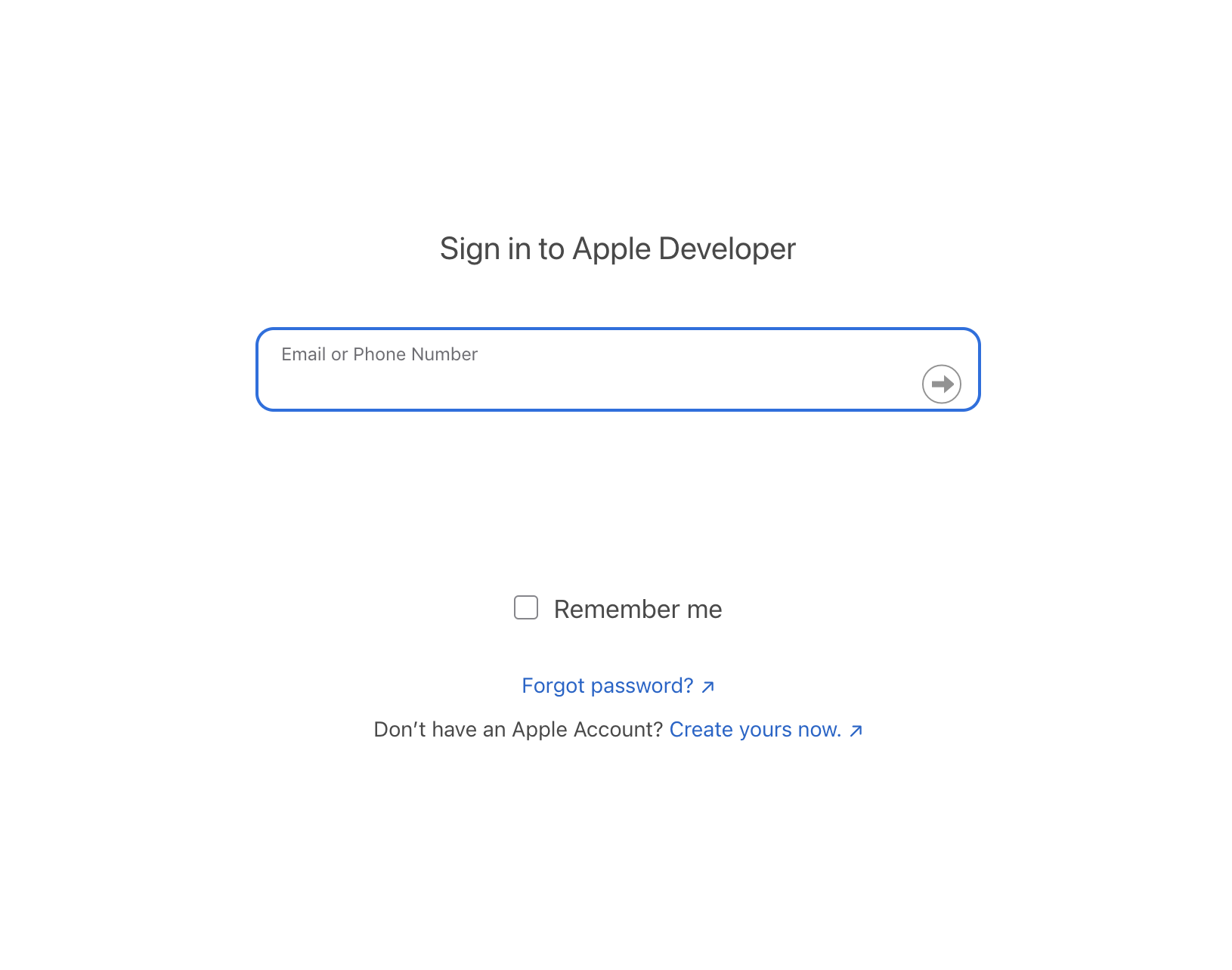
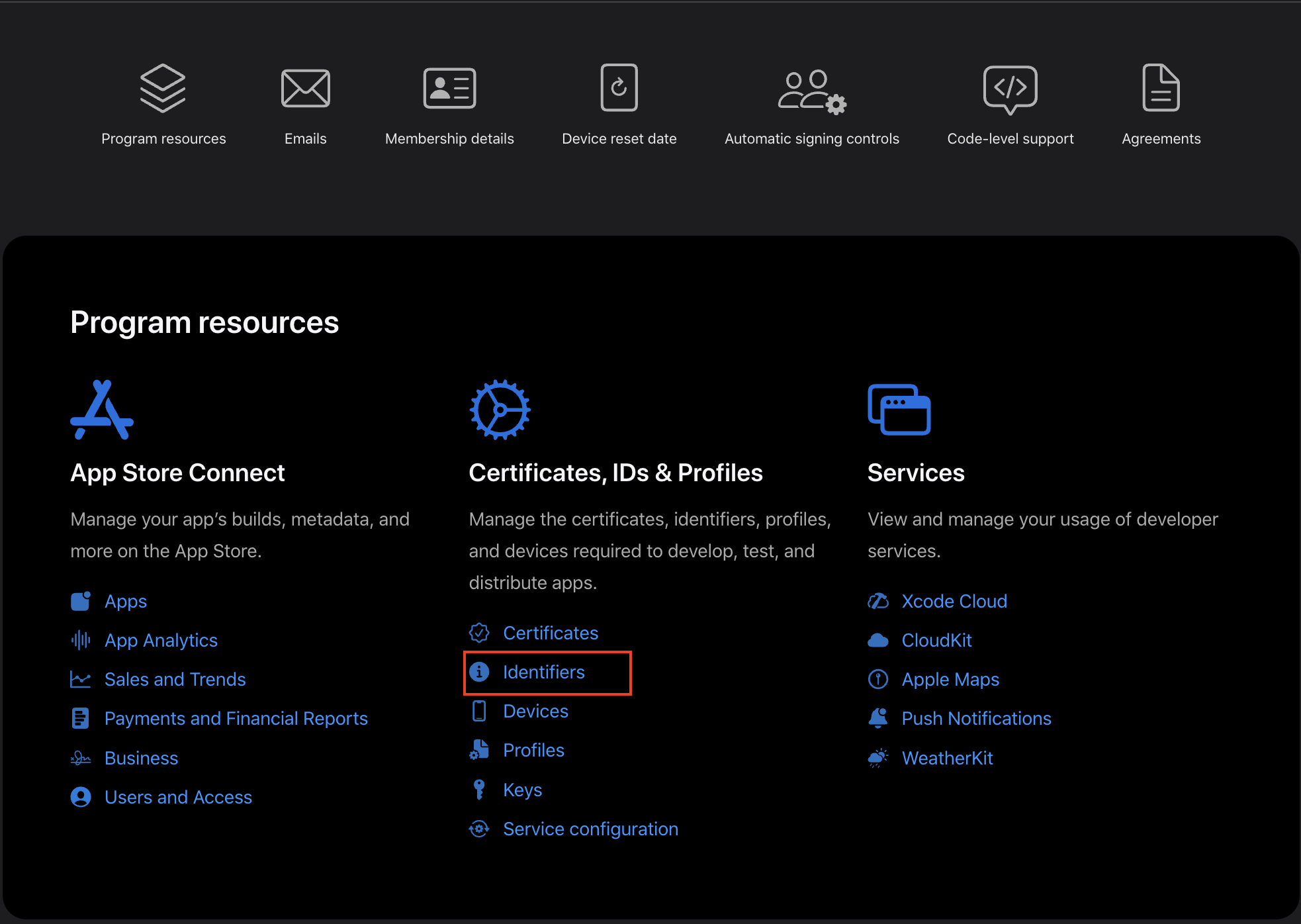
1. Apple Developer Account руу орно уу
2. Өөрийн developer бүртгэлээрээ нэвтэрнэ үү
APPLE PAY > PSP > Payment Certificate
APPLE PAY > PSP > Payment Certificate
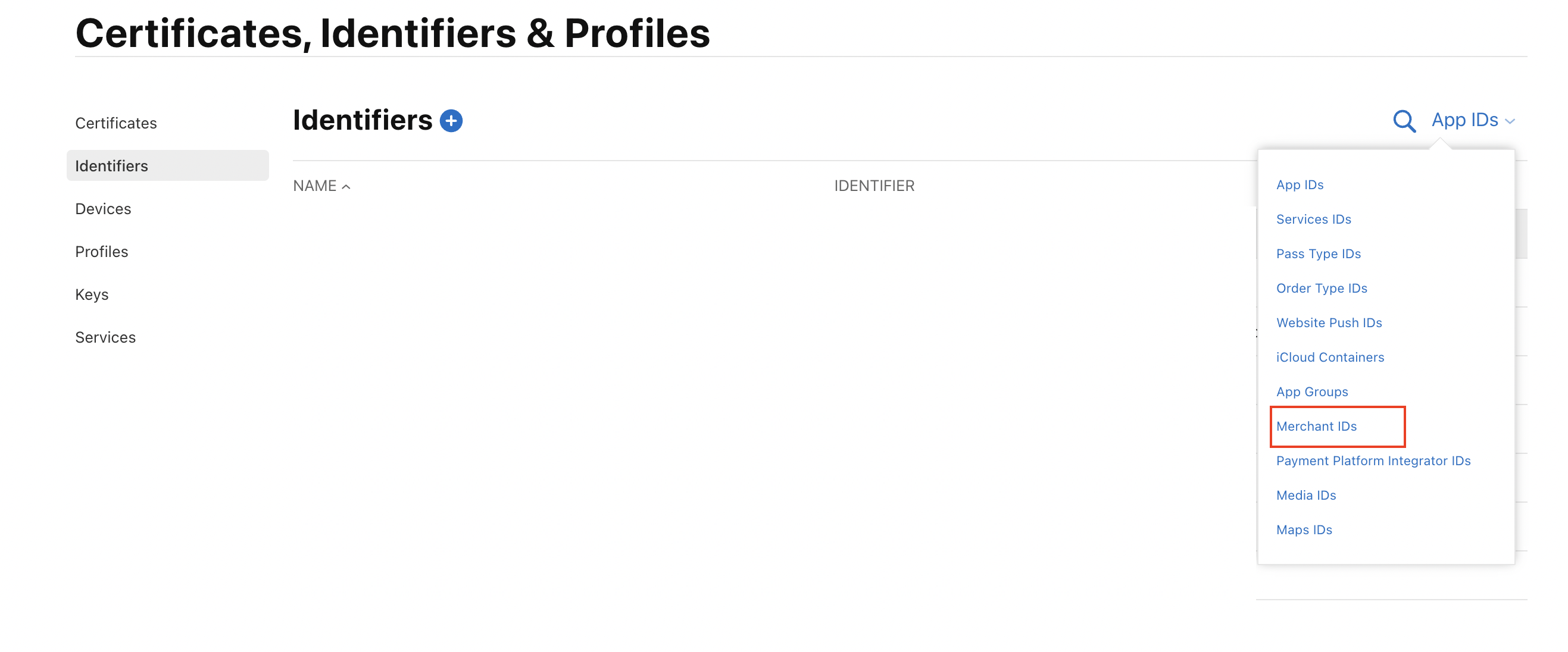
APPLE PAY > PSP > Payment Certificate
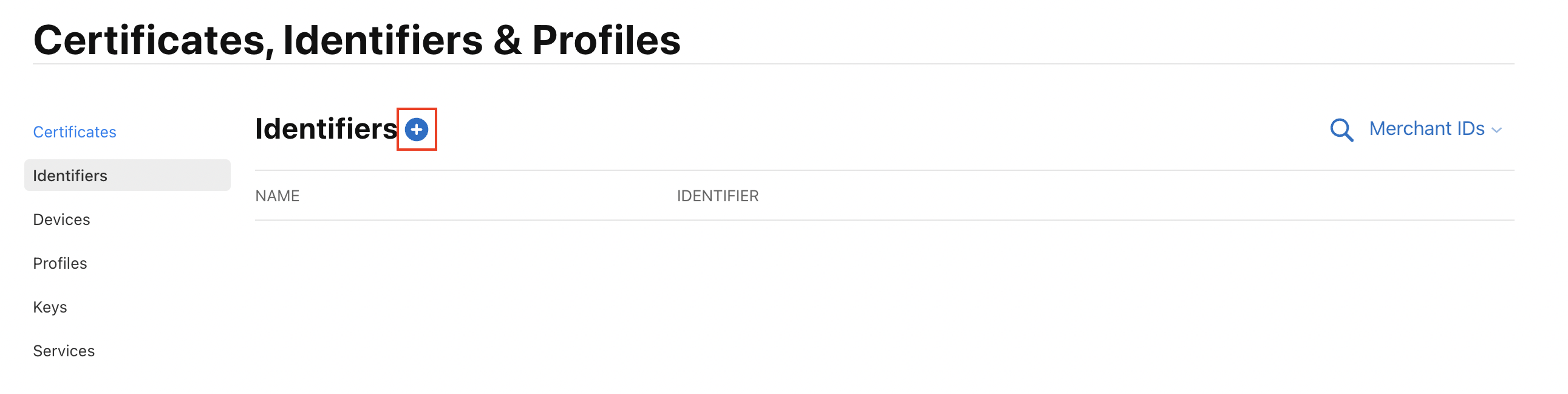
APPLE PAY > PSP > Payment Certificate
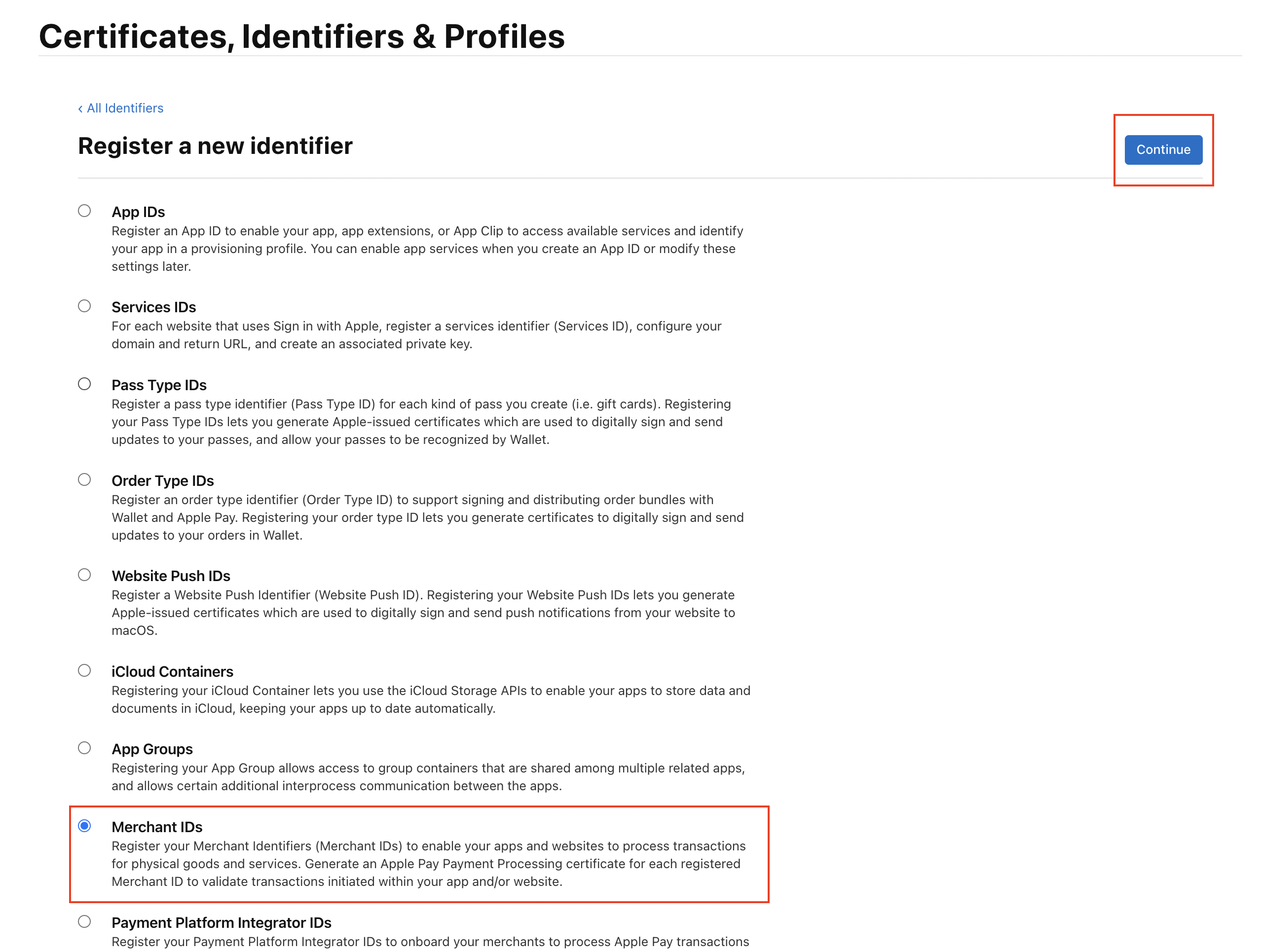
APPLE PAY > PSP > Payment Certificate
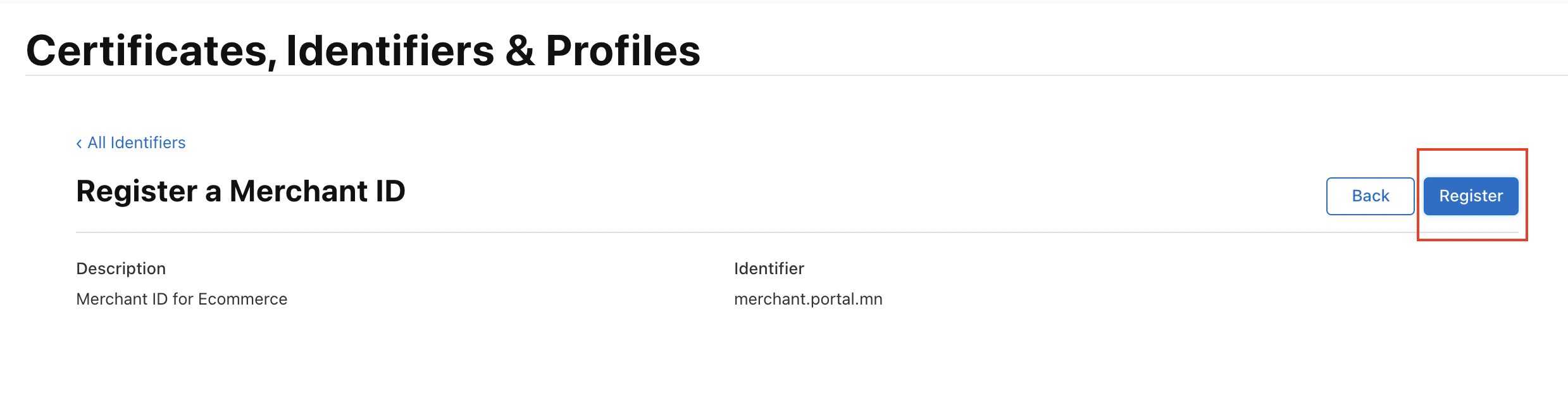
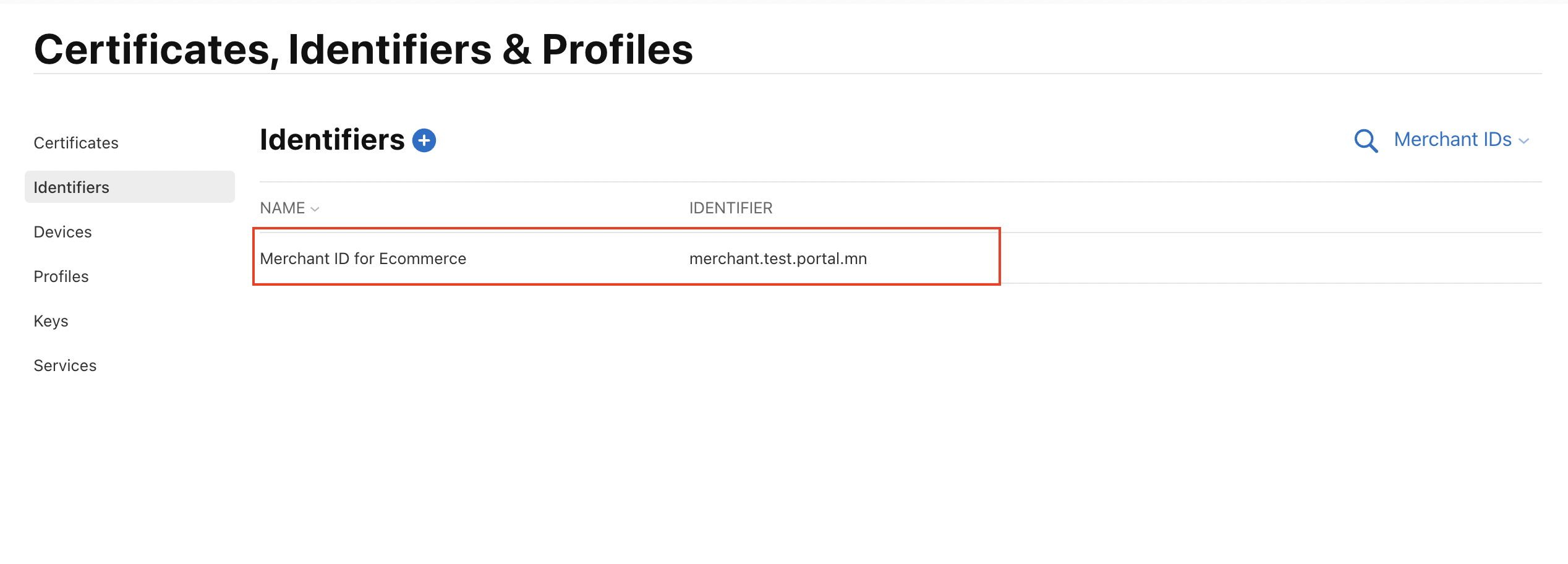
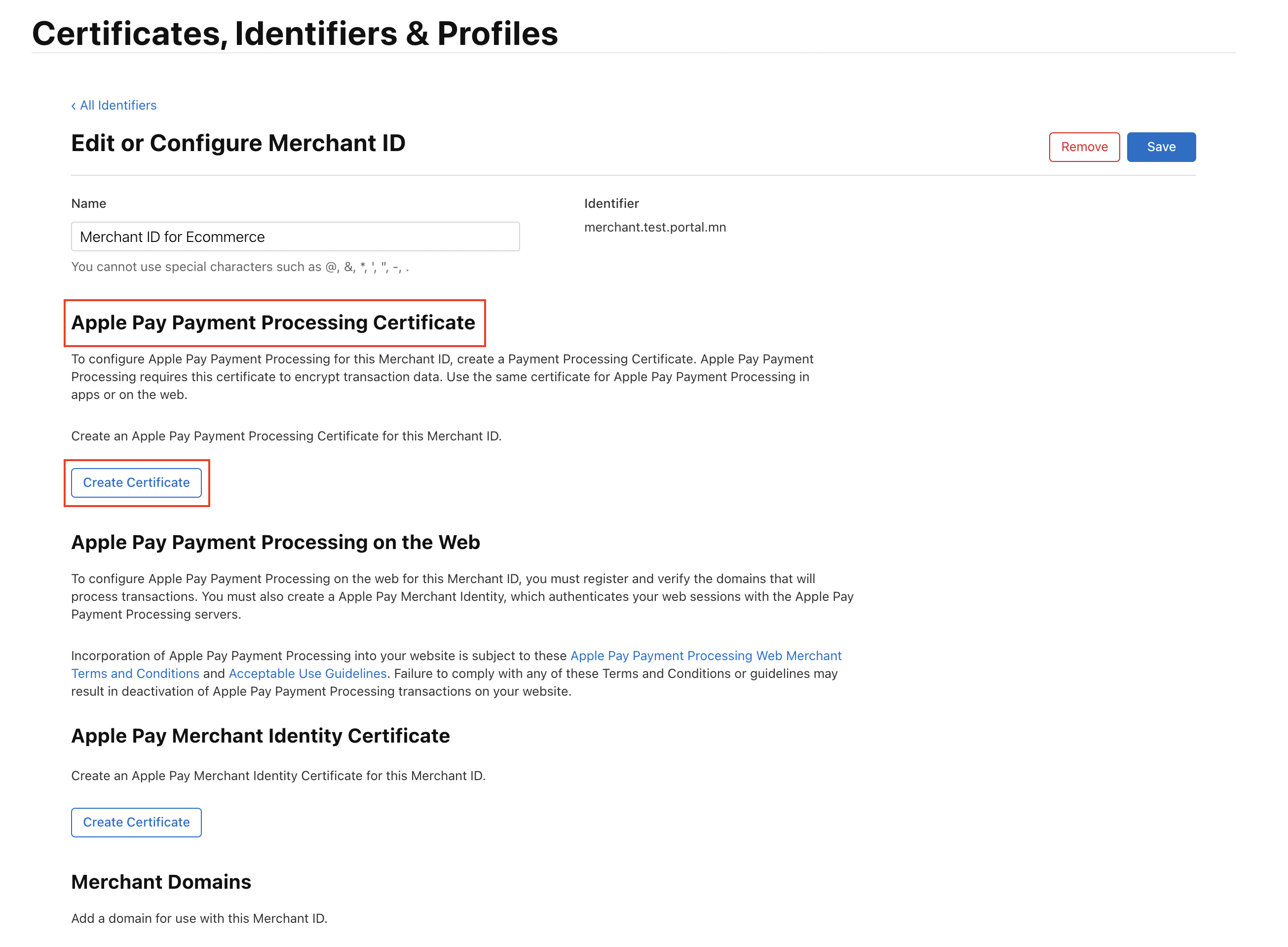
Тэмдэглэл: Таны Merchant ID-г Bonum PSP-ээс имэйлээр илгээсэн. Дэлгэцийн зураг дээрх merchant.portal.mn-г үл тоомсорлоно уу.
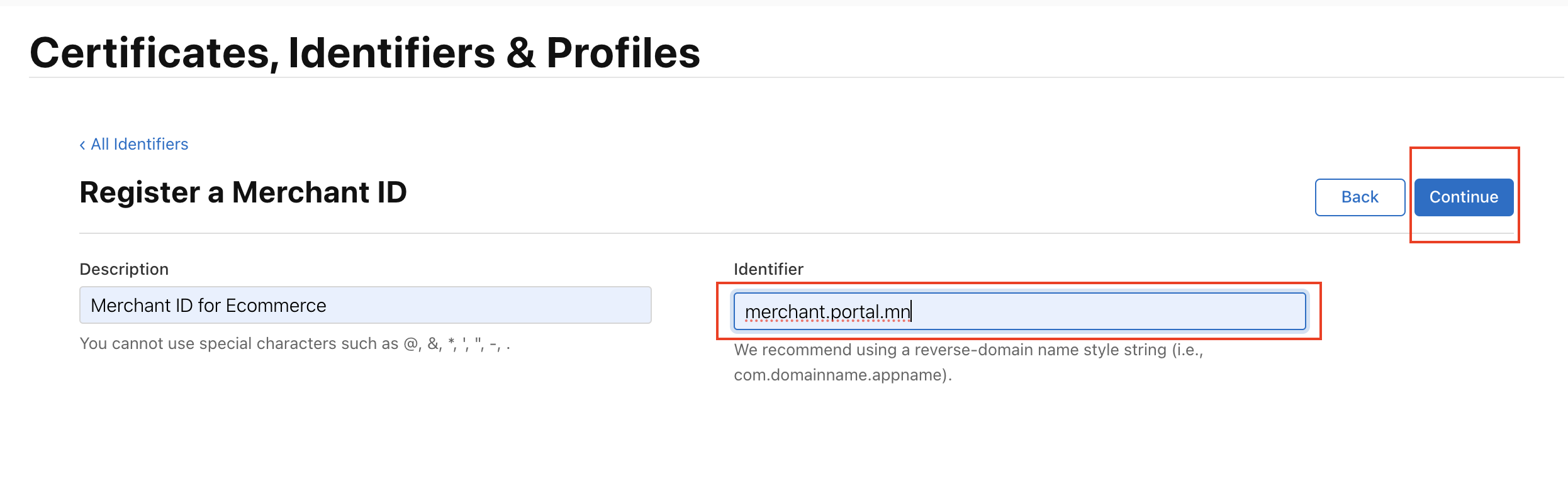
APPLE PAY > PSP > Payment Certificate
APPLE PAY > PSP > Payment Certificate
Merchant ID: merchant.portal.mn
APPLE PAY > PSP > Payment Certificate
APPLE PAY > PSP > Payment Certificate
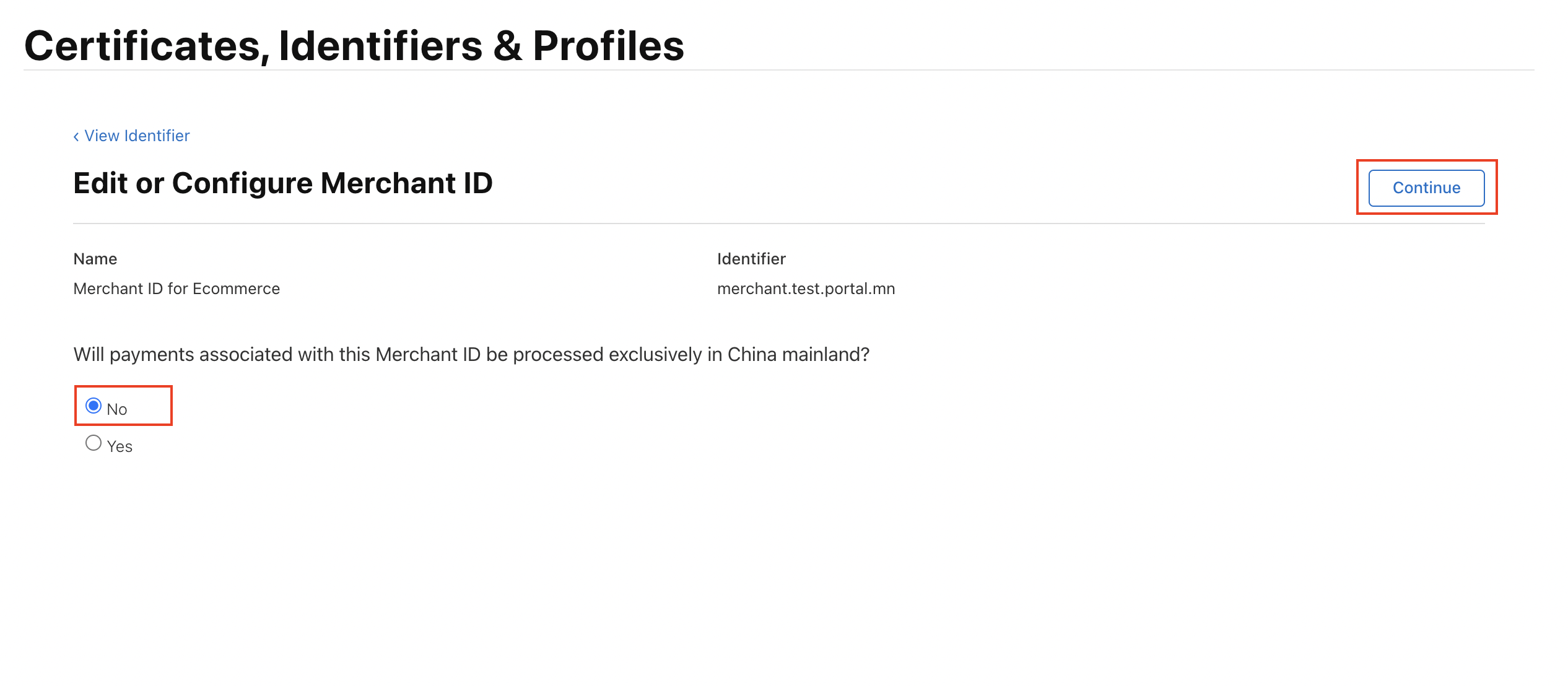
Тэмдэглэл: Асуултад "No" гэж сонгоно уу.
APPLE PAY > PSP > Payment Certificate
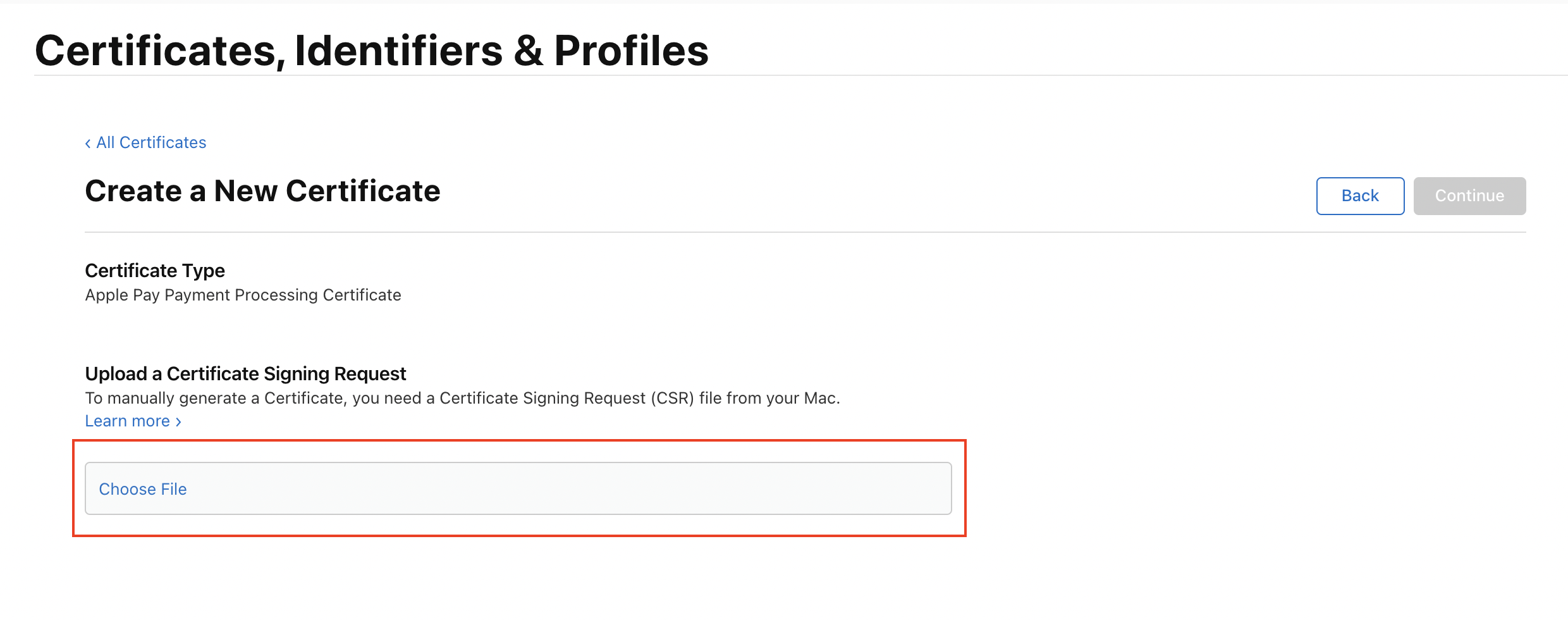
Хавсаргасан "SigningCertRequest.csr" файлыг байршуулна уу
Тэмдэглэл: .csr файлыг Bonum PSP-ээс имэйлээр илгээсэн.
APPLE PAY > PSP > Payment Certificate
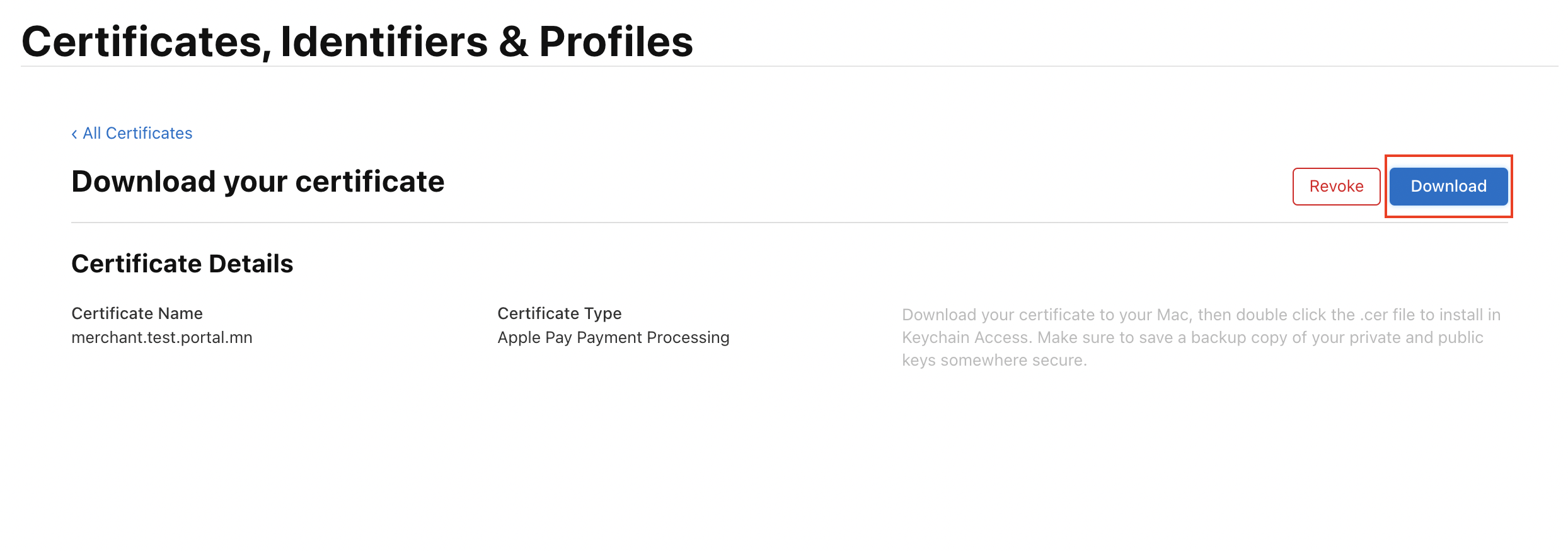
Payment Certificate файлыг татаж аваад бидэнд илгээнэ үү.
4.2 Апп дотор Хэрэгжүүлэлт
APPLE PAY > PSP > In App
1. Үргэлжлүүлэхийн өмнө дараах зүйлсийг бэлдсэн эсэхийг шалгана уу:
- Xcode Project
- Merchant ID (Merchant ID-г Bonum PSP-ээс өгсөн байх ёстой бөгөөд та өгсөн зааврын дагуу Merchant ID-гаа үүсгэсэн байх шаардлагатай.)
- Таны Apple Payment Certificate (Энэ сертификат Bonum PSP серверт амжилттай суулгагдсан байх ёстой.)
- Merchant Key (Merchant Key-г Bonum PSP-ээс өгсөн байх ёстой)
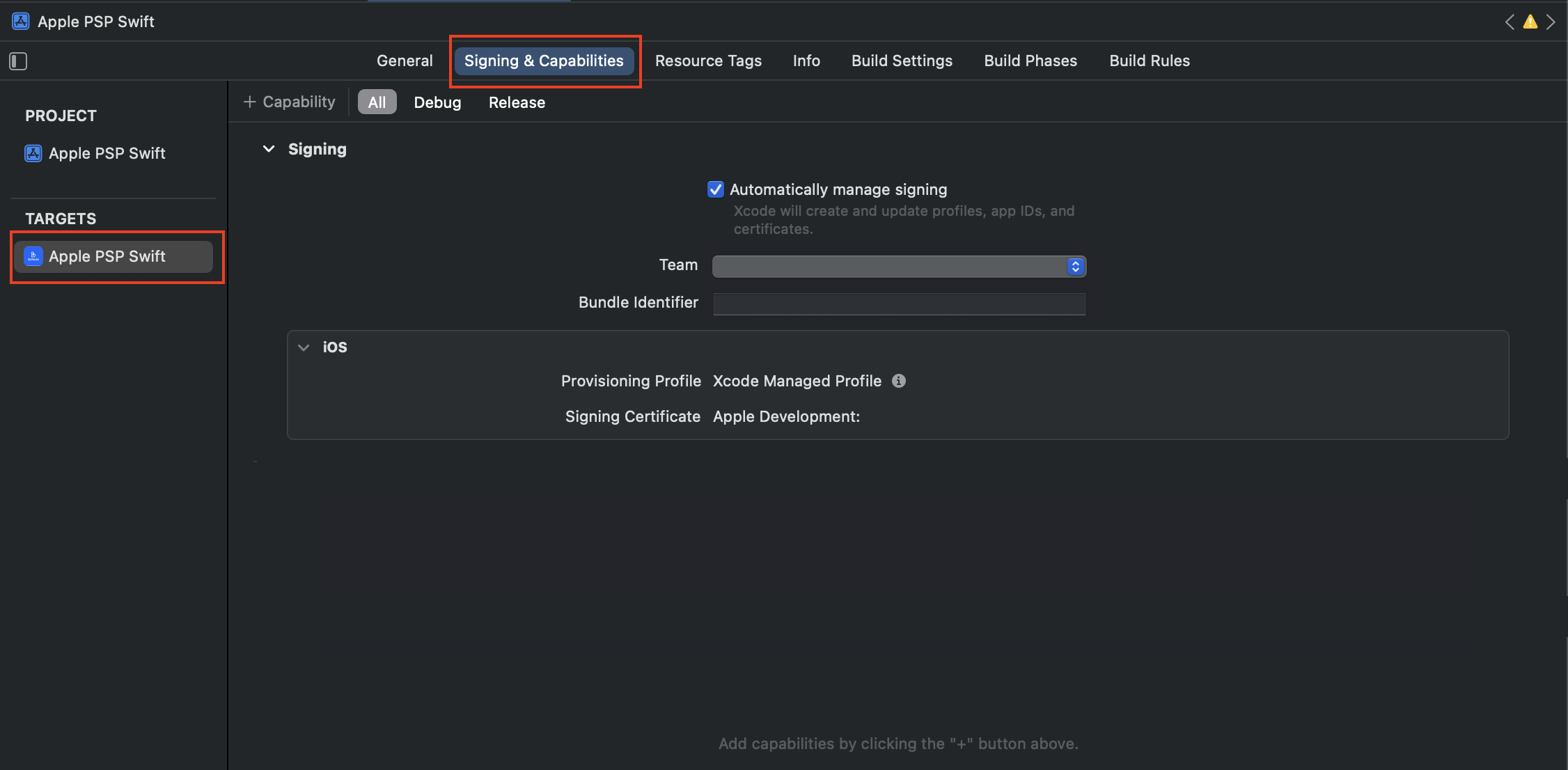
XCODE > Select Target > Signing & Capabilities
XCODE > Select Target > Signing & Capabilities
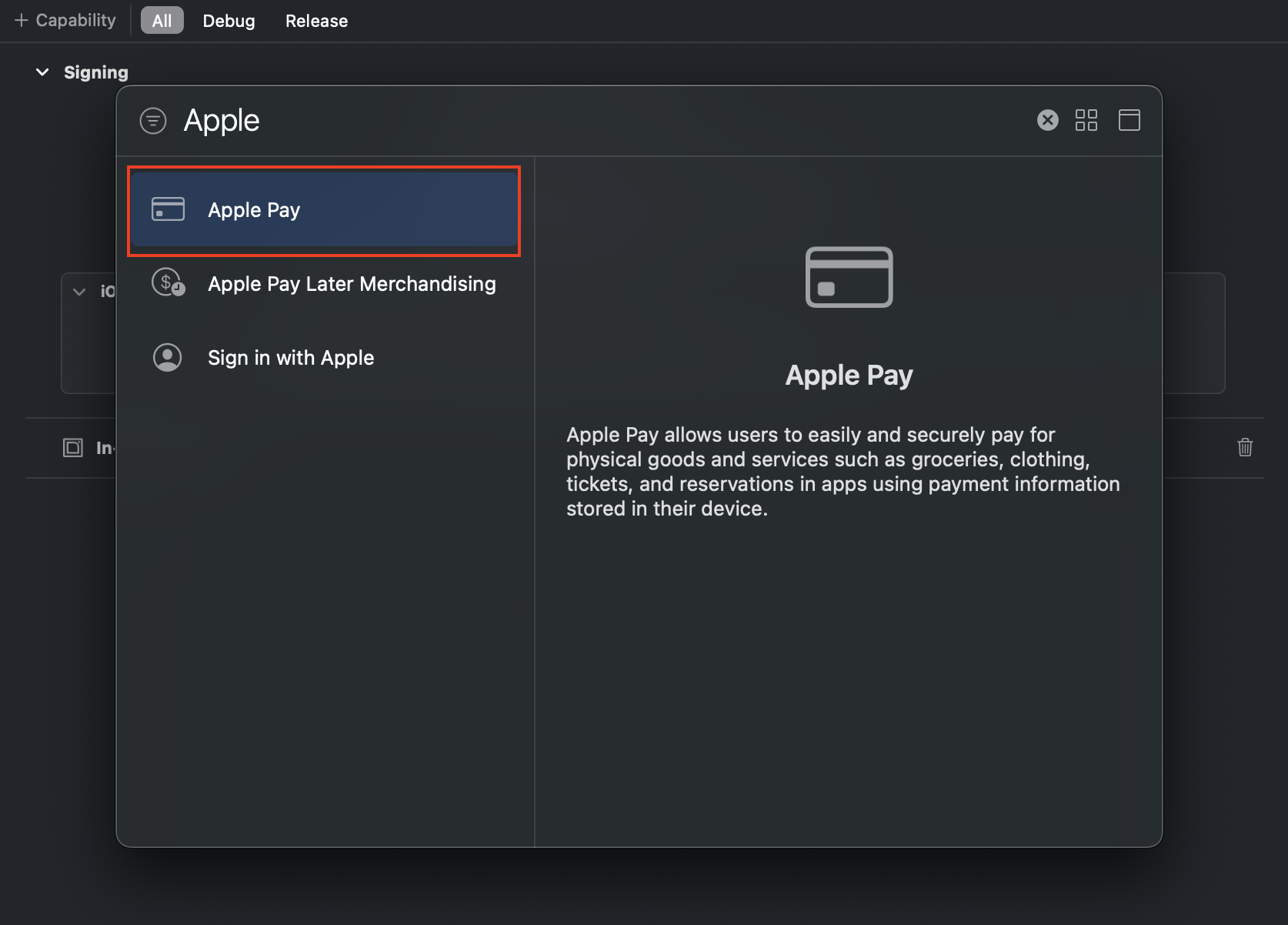
"Apple Pay" гэж хайна уу
XCODE > Select Target > Signing & Capabilities
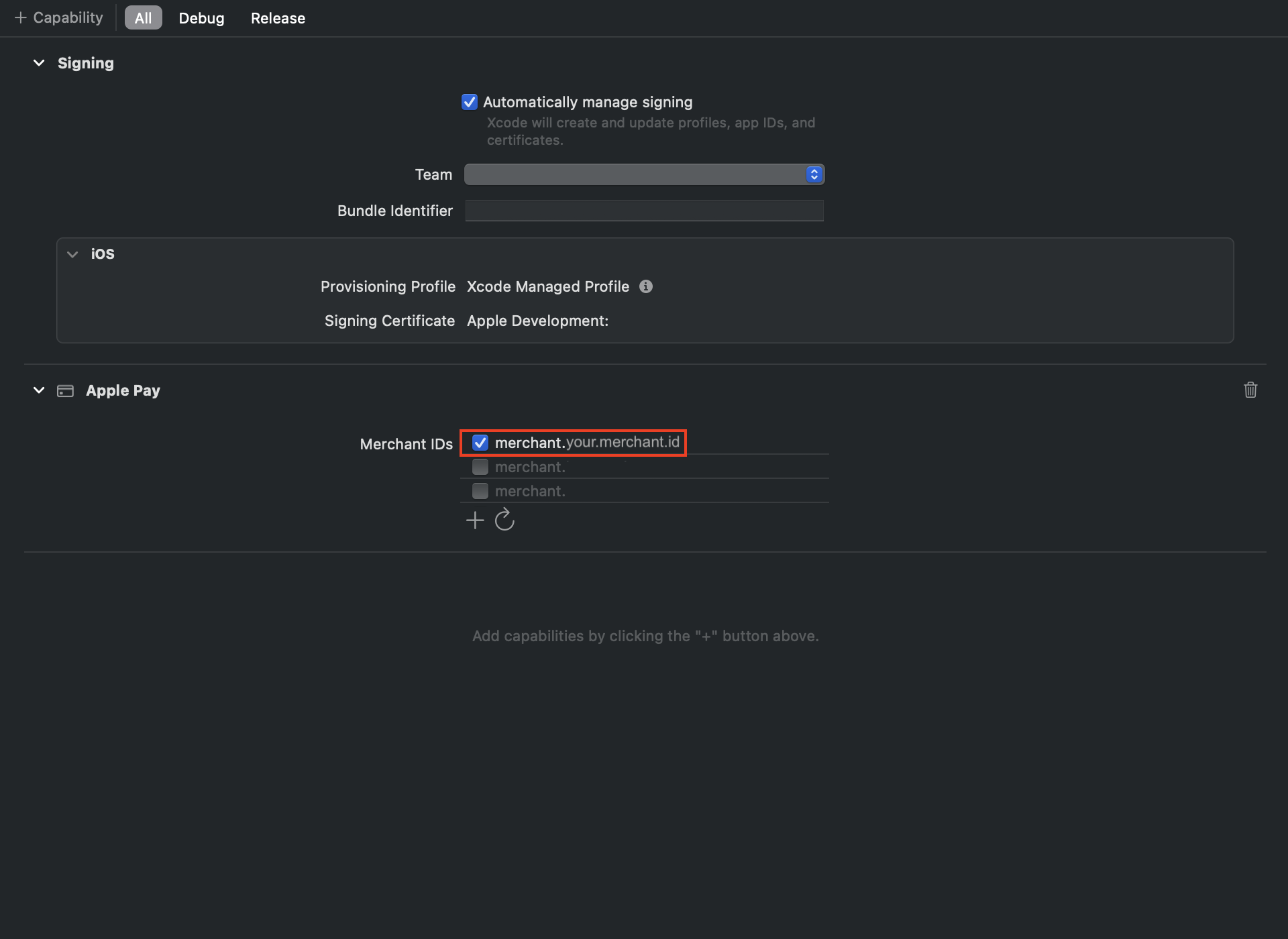
Apple Pay идэвхжсэний дараа доорх байдлаар харагдана.
Таны Merchant ID нь
'merchant.your.merchant.id'-ийн оронд харагдах ёстой

XCODE > Select Target > Signing & Capabilities
Таны Merchant ID нь 'merchant.your.merchant.id'-ийн оронд харагдах ёстой.
XCODE > Select Target > ApplePayViewController
Тэмдэглэл: Зааврыг уншиж //TODO: гэж тэмдэглэгдсэн кодыг өөрийн кодоор солино уу.
Код дотор солих чухал зүйлс:
1. "merchant.your.merchant.id"-г өөрийн Merchant ID-аар солино уу.
2. "SET-YOUR-MERCHANT-KEY-HERE"-г өөрийн Merchant Key-ээр солино уу.
3. generateRandomOrderString функцийн оронд захиалгын ID (нэхэмжлэх, SKU гэх мэт) ашиглана уу. Ингэснээр төлбөр бүрийг дахин давтагдахгүйгээр ялган таних боломжтой болно. Үүнийг бид гүйлгээ баталгаажуулахад ашиглана.
ApplePayViewController.swift нь PassKit болон "AFNetworking" ашигладаг.
- PassKit бол Apple-ийн хөгжүүлэгчдэд Apple Pay-г нэгтгэх боломжийг олгодог framework юм
- AFNetworking бол төлбөрийн payload өгөгдлийг Bonum PSP серверт илгээхэд ашиглагддаг нээлттэй эх бүхий сүлжээний сан юм.
- Таны view controller нь PKPaymentAuthorizationControllerDelegate аргуудыг хэрэгжүүлэх ёстой.
XCODE > ApplePayViewController.swift
override func viewDidLoad() {
    super.viewDidLoad()

    //TODO: Implement PKPaymentButton with its style here.
    var button: UIButton?
    //Checks whether payment can be made or not.
    if PKPaymentAuthorizationController.canMakePayments() {
        button = PKPaymentButton(paymentButtonType: .buy, paymentButtonStyle: .black)
        button?.addTarget(self, action: #selector(startApplePay), for: .touchUpInside)
    } else if PKPaymentAuthorizationController.canMakePayments(usingNetworks: [.masterCard, .visa, .amex]) {
        button = PKPaymentButton(paymentButtonType: .setUp, paymentButtonStyle: .black)
        button?.addTarget(self, action: #selector(setupPressed(_:)), for: .touchUpInside)
    }

    if let button = button {
        button.translatesAutoresizingMaskIntoConstraints = false
        view.addSubview(button)
        NSLayoutConstraint.activate([
            button.centerXAnchor.constraint(equalTo: view.centerXAnchor),
            button.centerYAnchor.constraint(equalTo: view.centerYAnchor)
        ])
    }
}
XCODE > ApplePayViewController.swift
Тэмдэглэл: PKPaymentSummaryItem дээр төлбөрийн дүн болон шошгыг тохируулна уу. Олон бараа зарах нь нэг бараа зарахаас ялгаатай тул кодын жишээнүүдийг үзнэ үү.
@objc func startApplePay() {
    guard PKPaymentAuthorizationController.canMakePayments() else {
        print("Apple Pay is not available on this device.")
        return
    }

    guard PKPaymentAuthorizationController.canMakePayments(usingNetworks: [.masterCard, .visa, .amex]) else {
        print("Apple Pay is not set up with a supported card.")
        return
    }

    let paymentRequest = PKPaymentRequest()
    paymentRequest.merchantIdentifier = "merchant.your.merchant.id" // TODO: Set Your Merchant ID here
    paymentRequest.supportedNetworks = [.masterCard, .visa, .amex]
    paymentRequest.merchantCapabilities = [.threeDSecure]
    paymentRequest.countryCode = "MN" //Country Code of Mongolia
    paymentRequest.currencyCode = "MNT" //Currency code of tugrik

    //TODO: One-time purchase for multiple items. Replace the label and amount here.
    let item1 = PKPaymentSummaryItem(label: "Apple", amount: NSDecimalNumber(string: "5.1"))
    let item2 = PKPaymentSummaryItem(label: "Banana", amount: NSDecimalNumber(string: "4.12"))
    //TODO: This item represents the total of all items. Its amount should be the sum of all individual items. For example: 5.1 + 4.12 = 9.22.
    let total = PKPaymentSummaryItem(label: "Total", amount: NSDecimalNumber(string: "9.22"))
    paymentRequest.paymentSummaryItems = [item1, item2, total]

    // TODO: One-time purchase for a single item. Replace the label and price here.
    // let total = PKPaymentSummaryItem(label: "Kiwi", amount: NSDecimalNumber(string: "10"))
    // paymentRequest.paymentSummaryItems = [total]

    let paymentController = PKPaymentAuthorizationController(paymentRequest: paymentRequest)
    paymentController.delegate = self

    paymentController.present { success in
        if success {
            print("Payment sheet presented successfully.")
        } else {
            print("Failed to present payment sheet.")
        }
    }
}
XCODE > ApplePayViewController.swift
Тэмдэглэл:
processPaymentData функц нь гүйлгээг боловсруулна.
convertPKPaymentToJSON функц нь төлбөр боловсруулахад зориулсан order_id бүхий Payload JSON обьектыг үүсгэнэ.
func paymentAuthorizationController(_ controller: PKPaymentAuthorizationController, didAuthorizePayment payment: PKPayment, handler: @escaping (PKPaymentAuthorizationResult) -> Void) {
    print("Payment authorized: \(payment.token)")
    print("Payment Network: \(String(describing: payment.token.paymentMethod.network))")
    print("Payment Transaction Identifier: \(payment.token.transactionIdentifier)")
    processPaymentData(payment) { result in
        handler(result)
    }
}

func convertPKPaymentToJSON(payment: PKPayment, orderId: String, branchId: String? = nil) -> Any? {
    // Extract the payment token details
    let paymentToken = payment.token
    let paymentData = convertToJson(data: paymentToken.paymentData)
    let transactionIdentifier = paymentToken.transactionIdentifier
    let paymentMethod = paymentToken.paymentMethod
    // Extract billing and shipping contacts
    let billingContact = payment.billingContact
    let shippingContact = payment.shippingContact
    // Construct the JSON object
    var jsonObject: [String: Any] = [:]

    jsonObject["token"] = [
        "paymentData": paymentData,
        "transactionIdentifier": transactionIdentifier,
        "paymentMethod": [
            "displayName": paymentMethod.displayName ?? "",
            "network": paymentMethod.network?.rawValue ?? "",
            "type": paymentMethod.type == .debit ? "debit" :
                paymentMethod.type == .credit ? "credit" : "unknown"
        ],
    ]
    //If unnecessary, don't use
    if let billing = billingContact {
        jsonObject["billingContact"] = [
            "givenName": billing.name?.givenName ?? "",
            "familyName": billing.name?.familyName ?? "",
            "emailAddress": billing.emailAddress ?? "",
            "phoneNumber": billing.phoneNumber?.stringValue ?? ""
        ]
    }
    //If unnecessary, don't use
    if let shipping = shippingContact {
        jsonObject["shippingContact"] = [
            "givenName": shipping.name?.givenName ?? "",
            "familyName": shipping.name?.familyName ?? "",
            "emailAddress": shipping.emailAddress ?? "",
            "phoneNumber": shipping.phoneNumber?.stringValue ?? ""
        ]
    }
    //Your ORDER ID should be set here
    jsonObject["order_id"] = orderId
    //Optional merchant branch/location id
    if let branchId = branchId {
        jsonObject["branch_id"] = branchId
    }
    return jsonObject
}
XCODE > ApplePayViewController.swift
Тэмдэглэл:
processPaymentData функц нь гүйлгээг боловсруулна.
Зөвлөмж: Server-to-Server /api/v2/payment/process API дуудлагыг ашиглах.
Энэ API дуудлагыг таны backend талд гүйцэтгэх ёстой.
func processPaymentData(_ payment: PKPayment, completion: @escaping (PKPaymentAuthorizationResult) -> Void) {
    let manager = AFHTTPSessionManager()
    manager.requestSerializer = AFJSONRequestSerializer()
    manager.responseSerializer = AFJSONResponseSerializer()
    manager.responseSerializer.acceptableContentTypes = manager.responseSerializer.acceptableContentTypes?.union(["application/json"])
    //TODO: set Merchant Key here. Bonum will provide Merchant Key.
    manager.requestSerializer.setValue("SET-YOUR-MERCHANT-KEY-HERE", forHTTPHeaderField: "x-merchant-key")

    //TODO: Set Payment process API url here
    //Demo URL. Note: This URL charges the bank transaction. Please use small amount when you test
    let urlString = "https://testpsp.bonum.mn/api/v2/payment/process"
    //Production URL. When you push your Build to the production
    //let urlString = "https://psp.bonum.mn/api/v2/payment/process"

    //TODO: set your order/invoice/sku/ id here.
    let orderId = generateRandomOrderString(length: 20)
    orderIdLbl.text = orderId
    let jsonPayload = convertPKPaymentToJSON(payment: payment, orderId: orderId)

    // Convert the JSON object to a JSON string
    if let jsonData = try? JSONSerialization.data(withJSONObject: jsonPayload ?? "", options: .prettyPrinted) {
        let jsonString = String(data: jsonData, encoding: .utf8)
        print("Payload data: \(jsonString ?? "No response")")
    }

    manager.post(urlString, parameters: jsonPayload, headers: nil, progress: { progress in
        print("Download progress: \(progress.totalUnitCount)")
    }, success: { task, responseObject in
        print("POST response: \(responseObject ?? "No response")")
        // Safely cast responseObject to [String: Any]
        // V2 returns PENDING immediately with paymentId and awaitUrl
        if let responseDict = responseObject as? [String: Any],
           let awaitUrl = responseDict["awaitUrl"] as? String,
           let paymentId = responseDict["paymentId"] as? String {
            print("Payment submitted. paymentId: \(paymentId), awaiting bank response...")
            // Call awaitUrl to block until the bank responds (required to close Apple Pay session)
            let awaitUrlString = "https://testpsp.bonum.mn" + awaitUrl
            //let awaitUrlString = "https://psp.bonum.mn" + awaitUrl // Production
            manager.get(awaitUrlString, parameters: nil, headers: nil, progress: nil,
                success: { _, awaitResponse in
                    if let awaitDict = awaitResponse as? [String: Any],
                       let status = awaitDict["status"] as? String {
                        if status == "AUTHORIZED" {
                            completion(PKPaymentAuthorizationResult(status: .success, errors: nil))
                        } else {
                            // FAILED or PENDING (timed out) - close session as failure; webhook will confirm
                            completion(PKPaymentAuthorizationResult(status: .failure, errors: nil))
                        }
                    } else {
                        completion(PKPaymentAuthorizationResult(status: .failure, errors: nil))
                    }
                },
                failure: { _, error in
                    print("Await error: \(error.localizedDescription)")
                    completion(PKPaymentAuthorizationResult(status: .failure, errors: nil))
                })
        } else {
            print("Failed to parse V2 response.")
            completion(PKPaymentAuthorizationResult(status: .failure, errors: nil))
        }

    }, failure: { task, error in
        print("Error on GET request: \(error.localizedDescription)")
        let failureResult = PKPaymentAuthorizationResult(status: .failure, errors: nil)
        completion(failureResult)
    })
}
XCODE > ApplePayViewController.swift
{
   "token":{
      "paymentMethod":{
         "type":"debit",
         "network":"MasterCard",
         "displayName":"MasterCard 1588"
      },
      "transactionIdentifier":"4be88bbec5d887d696b536b87d9a28a25d5ca5e6cbbac6e06bb3c14b0967f16f",
      "paymentData":{
         "data":"lAGF6hAH+z\/vZz1UG",
         "signature":"BkAiA+zmtT6wYi6JxyrpjEqYSYRw82kMhjxXSZIvyd1G9zNgAAAAAAAA==",
         "header":{
            "publicKeyHash":"EalQwLcwQ0Mqh9R1qWtAwsO4Eht+6T2w9pMNypx2sP8=",
            "ephemeralPublicKey":"MFkwEwYHKoZIzj0CAQYIKoZIzj0DAQcDQgAEzy8Acl6MTWG7luHdWeA\/sI+7mXMczg698cdOB9lYJBVVg2WYNgP4Ila4+vLfqvYQmBurR7wK1UQ2W8Ma2kNUAA==",
            "transactionId":"4be88bbec5d887d696b536b87d9a28a25d5ca5e6cbbac6e06bb3c14b0967f16f"
         },
         "version":"EC_v1"
      }
   },
   "order_id":"1nnuqsc4j6bzpl5hm26z",
   "branch_id":"BRANCH-001"
}
XCODE > ApplePayViewController.swift
Тэмдэглэл: Төлбөрийн статусыг шалгахын тулд /api/v2/payments/lookup/by-order-id API-г ашиглаж болно.
Зөвлөмж: Server-to-Server /api/v2/payments/lookup/by-order-id API дуудлагыг ашиглах.
Энэ API дуудлагыг backend талд гүйцэтгэх ёстой.
func checkPaymentByOrderId(orderId: String) {

    let manager = AFHTTPSessionManager()
    manager.requestSerializer = AFJSONRequestSerializer()
    manager.responseSerializer = AFJSONResponseSerializer()
    manager.responseSerializer.acceptableContentTypes = manager.responseSerializer.acceptableContentTypes?.union(["application/json"])
    //TODO: set Merchant Key here. Bonum will provide Merchant Key.
    manager.requestSerializer.setValue("SET-YOUR-MERCHANT-KEY-HERE", forHTTPHeaderField: "x-merchant-key")


    //Demo URL. Note: This URL charges the bank transaction. Please use small amount when you test
    var urlString = "https://testpsp.bonum.mn/api/v2/payments/lookup/by-order-id"
    //Production URL. When you push your Build to the production
    //var urlString = "https://psp.bonum.mn/api/v2/payments/lookup/by-order-id"

    urlString = urlString + "?orderId=" + orderId
    // Convert the JSON object to a JSON string
    print("API Url: \(urlString)")

    manager.get(urlString,
                parameters: nil,
                headers: nil, progress: { progress in
        print("Download progress: \(progress.totalUnitCount)")
    }, success: { task, responseObject in
        print("Transactions for Order ID: \(orderId)")
        print("GET response: \(responseObject ?? "No response")")
    }, failure: { task, error in
        print("Error on GET request: \(error.localizedDescription)")
    })
}
XCODE > ApplePayViewController.swift
Тэмдэглэл:
"status": "FAILED"
нь гүйлгээ ямар нэг шалтгаанаар амжилтгүй болсныг илэрхийлнэ.
Тэмдэглэл:
"status": "AUTHORIZED"
нь гүйлгээ амжилттай боловсруулагдсаныг илэрхийлнэ.
[
    {
      "paymentId": "550e8400-e29b-41d4-a716-446655440000",
      "orderId": "9876543",
      "amount": 5000,
      "status": "FAILED",
      "failureReason": "Insufficient funds",
      "createdAt": "2025-01-24T03:22:03.135Z"
    },
    {
      "paymentId": "7b12c830-f9d2-4a3e-b101-885544220011",
      "orderId": "9876543",
      "amount": 5000,
      "status": "AUTHORIZED",
      "providerReference": "BNM-2024-00123",
      "createdAt": "2025-01-24T03:22:03.135Z"
    }
]
5. ДЭМЖЛЭГ & ХОЛБОО БАРИХ
Лавлагаа:
Apple Pay on Web Demo by Apple - https://applepaydemo.apple.com
Apple Pay Human Interface Guidelines - https://developer.apple.com/design/human-interface-guidelines/apple-pay
Apple Pay Marketing Resources - https://developer.apple.com/apple-pay/marketing
Apple Pay Marketing Guidelines - https://developer.apple.com/apple-pay/marketing
Хэрэв танд нэмэлт тусламж хэрэгтэй бол манай багтай холбогдоно уу:
- И-мэйл:
[email protected]
- Утас: +976 7200-5000
1. Introduction
This guide provides detailed instructions on integrating Apple Pay for web and in-app applications, including domain verification, payment processing, and security compliance.
2. Setup & Integration
We support Apple Pay for e-commerce web and iOS applications.
The following diagrams show all actions on Bonum and Enterprise user
side:
1. If you need web application integration:
3. Web App Integration
3.1 Domain Verification
Domain verification is a required step for enabling Apple Pay on
your website. It confirms that you own the domain and are
authorized to accept payments via Apple Pay.
The process involves placing a special verification file,
provided by us (Bonum PSP), on your domain's web server and
notifying us to verify it with Apple.
Before proceeding, ensure you have:
- Access to your web server or hosting environment to upload
files.
- A valid domain name that matches the one used for your Apple
Pay integration.
Step 1: Obtain the Verification File
- Bonum will provide this file (File name is apple-developer-merchantid-domain-association)
Step 2: Place the File on Your Web Server
1. Create the required directory:
On your web server, create a directory named .well-known in the
root directory of your domain (if it doesn’t already exist).
Example Path:
https://yourdomain.com/.well-known/
2. Upload the file:
Place the downloaded
apple-developer-merchantid-domain-association file inside the
.well-known directory.
Ensure the file is accessible publicly via the following URL:
https://yourdomain.com/.well-known/apple-developer-merchantid-domain-association
3. Content-Type:
The Apple Pay web merchant validation file must be served with a Content-Type of text/plain when accessed via a browser or HTTP request.
4. Verify file placement:
Open a browser and navigate to the file's URL. You should see
the contents of the file displayed as plain text.
Step 3: Notify Us
- After placing the file, let us be informed by any available
communication channels.
Step 4: Domain Verification by Apple
Our system will communicate with Apple to verify your domain.
This process usually completes within a few minutes. We will
inform merchants once the verification is successful.
Issue 1: File Not Found
Cause: The
apple-developer-merchantid-domain-association file is not
correctly placed in the .well-known directory. Solution: Verify
the file path and ensure the file is accessible via its URL.
Issue 2: Access Denied
Cause: Your server has restricted access to the
.well-known
directory or file.
Solution: Check your server's permissions and ensure the
.well-known directory and file are publicly accessible.
3.2 Web App Implementation
APPLE PAY > PSP > Web App
- Merchant ID (The Merchant ID should have been provided by Bonum PSP)
- Merchant Key (The Merchant Key should have been provided by Bonum PSP)
APPLE PAY > PSP > Project Structure
- index.html - The frontend with the Apple Pay button and JavaScript integration. See sections B, C and D below.
- server.js - The backend server (Node.js with Express) that handles Apple Pay merchant validation and payment processing. See section E below.
- package.json - Lists dependencies needed for your backend. Create it with npm init -y, then install the dependencies used by server.js with npm install express body-parser axios cors.
- package-lock.json - Generated automatically by npm install to lock dependency versions.
Web App > Frontend Integration
Note: Apple Pay button implementation
<head>
  <title>Apple Pay Integration Example</title>
  <!-- Apple Pay SDK -->
  <script src="https://applepay.cdn-apple.com/jsapi/1.latest/apple-pay-sdk.js"></script>

  <!-- Apple Pay button styling -->
  <style>
      apple-pay-button {
          --apple-pay-button-width: 140px;
          --apple-pay-button-height: 30px;
          --apple-pay-button-border-radius: 5px;
          --apple-pay-button-padding: 5px 0px;
      }
  </style>
</head>


  <!-- Apple Pay Button -->
  <apple-pay-button
    buttonstyle="black"
    type="buy"
    locale="en-US"
    id="applePayButton"
  ></apple-pay-button>

  <script>
    function isMacOSSafari() {
      const userAgent = navigator.userAgent;
      return /Macintosh/i.test(userAgent) && /Safari/i.test(userAgent) && !/Chrome|CriOS|Edg/i.test(userAgent);
    }
    // Step 1: Attach a click event listener to the Apple Pay button.
    const applePayButton = document.getElementById('applePayButton');
    if (!isMacOSSafari()) {
      applePayButton.addEventListener('click', () => {
        if (window.ApplePaySession && ApplePaySession.canMakePayments()) {
          startApplePaySession(); // Proceed to initialize Apple Pay session
        } else {
          console.log('Apple Pay is not available on this device.');
          alert('Apple Pay is not supported on your browser or device.');
        }
      });
    } else {
      applePayButton.style.display = 'none'; // Hide Apple Pay button on unsupported browsers
      console.log('Unsupported browser for Apple Pay.');
    }
Web App > Frontend Integration
Note:
1.Replace
“REPLACE_YOUR_MERCHANT_IDEN_TIFIER_HERE”with your merchant ID.
2. "total” represents the amount to be charged. To break
down the payment details, use "lineItems".
3.
Create a new Apple Pay session.
function startApplePaySession() {
// Merchant-specific information
const merchantIdentifier = 'REPLACE_YOUR_MERCHANT_IDENTIFIER_HERE'; // Replace with your actual merchant ID

// Payment request details
const paymentRequest = {
  countryCode: 'MN', // Country code for Mongolia
  currencyCode: 'MNT', // Mongolian Tugrik
  supportedNetworks: ['visa', 'masterCard', 'amex'], // Supported card networks
  merchantCapabilities: ['supports3DS'], // Security capabilities
  displayName: 'Your Merchant Name', // Name displayed on the payment sheet
  total: {
    label: 'Your Merchant Name', // Total summary label
    amount: '100', // Total amount (in whole numbers for MNT (100.00 is invalid, 100 - is valid))
  },
  lineItems: [ //optional
    { label: 'Product A', amount: '200' },
    { label: 'Discount', amount: '-100' },
  ],
  applicationData: btoa(merchantIdentifier), // Base64 encoded merchant ID
};

// Ensure amount is a whole number for Mongolian Tugrik (MNT)
if (paymentRequest.currencyCode === 'MNT' && !Number.isInteger(Number(paymentRequest.total.amount))) {
  alert('Amounts in Mongolian Tugrik (MNT) must be whole numbers without decimal points.');
  return;
}

// Create a new Apple Pay session
const session = new ApplePaySession(3, paymentRequest);

// Step 3: Validate the merchant during the payment session
session.onvalidatemerchant = async (event) => {
  try {
    const response = await fetch('https://psp.bonum.mn/api/merchant/validate', {
      method: 'POST',
      headers: { 'Content-Type': 'application/json' },
      body: JSON.stringify({ validationURL: event.validationURL }),
    });
    const merchantSession = await response.json();
    session.completeMerchantValidation(merchantSession);
  } catch (error) {
    console.error('Merchant validation failed:', error);
    session.abort();
  }
};
Web App > Frontend Integration
Note: Handle payment authorization.
// Step 4: Handle payment authorization
session.onpaymentauthorized = async (event) => {
    const token = event.payment.token;

    try {
      //frontend will send token to its backend. merchant can customize to their needs.
      const response = await fetch('http://localhost:3000/api/payment/authorize', {
        method: 'POST',
        headers: { 'Content-Type': 'application/json' },
        body: JSON.stringify({ token, orderId: 'REPLACE_ORDER_ID_HERE' }),
      });
      const result = await response.json();

      // merchant backend response parsing, customize to your needs.
      if (result.success) {
        session.completePayment(ApplePaySession.STATUS_SUCCESS); //mandatory
        ///alert("Payment succeeded: $ {result.description}");
      } else {
        session.completePayment(ApplePaySession.STATUS_FAILURE); //mandatory
        // alert("Payment failed: $ {result.description}"");
      }
    } catch (error) {
      console.error('Error processing payment:', error);
      session.completePayment(ApplePaySession.STATUS_FAILURE);
      alert('Unexpected error occurred while processing payment.');
    }
  };

  // Step 5: Handle payment cancellation
  session.oncancel = () => {
    console.log('Payment was canceled by the user.');
    alert('Payment was canceled.');
  };

  // Step 6: Begin the session
  session.begin();
}
Web App > The backend Integration
Note: Handle payment authorization and process the payment.
Replace “REPLACE_YOUR_MERCHANT_KEY"with your merchant
key.
const express = require('express');
const bodyParser = require('body-parser');
const axios = require('axios');
const cors = require('cors');
const app = express();
const PORT = 3000;

// Allow specific origins (replace "http://example.com" with your frontend's URL)
app.use(cors({
  origin: 'https://psp.bonum.mn', // Allow this specific origin
}));

// Middleware: Parses incoming JSON request bodies
app.use(bodyParser.json());

/**
 * Endpoint to process payment authorization.
 * The client sends a token and an orderId, which are forwarded to the PSP (Payment Service Provider).
 */
app.post('/api/payment/authorize', async (req, res) => {
  const { token, orderId, branchId } = req.body;

  // Step 1: Validate incoming request data
  if (!token || !orderId) {
    return res.status(400).json({
      success: false,
      message: 'Missing token or orderId',
    });
  }

  try {
    // Step 2: Forward the payment data to the PSP
    const response = await axios.post(
      'https://psp.bonum.mn/api/v2/payment/process', // Bonum PSP V2 endpoint
      {
        token,          // Payment token received from Apple Pay
        order_id: orderId, // Merchant invoice/order id
        branch_id: branchId, // Optional merchant branch/location id
      },
      {
        headers: {
          'Content-Type': 'application/json',
          'x-merchant-key': 'REPLACE_YOUR_MERCHANT_KEY', // Replace with your actual merchant key
        },
      }
    );
        console.log('resp', response.data);
    // Step 3: V2 returns PENDING immediately - call awaitUrl to get the terminal status
    // This is required to close the Apple Pay session with the correct result
    const { paymentId, awaitUrl } = response.data;
    const awaitResp = await axios.get(
      'https://psp.bonum.mn' + awaitUrl,
      { headers: { 'x-merchant-key': 'REPLACE_YOUR_MERCHANT_KEY' } }
    );
    const finalStatus = awaitResp.data.status; // 'AUTHORIZED' or 'FAILED'
    res.json({
      success: finalStatus === 'AUTHORIZED',
      paymentId,
      status: finalStatus,
      failureReason: awaitResp.data.failureReason ?? null,
    });
  } catch (error) {
    console.error('Error processing payment:', error.message);

    // Step 4: Handle errors from the PSP or network issues
    if (error.response) {
      // Errors returned directly by the PSP
      return res.status(error.response.status).json({
        success: false,
        paymentId: null,
        status: 'FAILED',
        failureReason: error.response.data.message ?? 'Payment processing error',
      });
    }

    // Step 5: Handle unexpected or generic errors (network, server, etc.)
    res.status(500).json({
      success: false,
      paymentId: null,
      status: 'FAILED',
      failureReason: 'Unexpected error occurred while processing payment.',
    });
  }
});

// Start the Express server
app.listen(PORT, () => {
  console.log("Server is running on http://localhost:" +PORT);
});
Web App > The backend integration
Note: You can use the /api/v2/payments/lookup/by-order-id API to check
payment status by your order ID.
Replace
“REPLACE_YOUR_MERCHANT_KEY"
with your merchant key.
This API call should be executed on your backend.
func checkPaymentByOrderId(orderId: String) {

  let manager = AFHTTPSessionManager()
  manager.requestSerializer = AFJSONRequestSerializer()
  manager.responseSerializer = AFJSONResponseSerializer()
  manager.responseSerializer.acceptableContentTypes = manager.responseSerializer.acceptableContentTypes?.union(["application/json"])
  //TODO: set Merchant Key here. Bonum will provide Merchant Key.
  manager.requestSerializer.setValue("SET-YOUR-MERCHANT-KEY-HERE", forHTTPHeaderField: "x-merchant-key")


  //Demo URL. Note: This URL charges the bank transaction. Please use small amount when you test
  var urlString = "https://testpsp.bonum.mn/api/v2/payments/lookup/by-order-id"
  //Production URL. When you push your Build to the production
  //var urlString = "https://psp.bonum.mn/api/v2/payments/lookup/by-order-id"

  urlString = urlString + "?orderId=" + orderId
  // Convert the JSON object to a JSON string
  print("API Url: \(urlString)")

  manager.get(urlString,
              parameters: nil,
              headers: nil, progress: { progress in
      print("Download progress: \(progress.totalUnitCount)")
  }, success: { task, responseObject in
      print("Transactions for Order ID: \(orderId)")
      print("GET response: \(responseObject ?? "No response")")
  }, failure: { task, error in
      print("Error on GET request: \(error.localizedDescription)")
  })
}
Web App > The backend integration
Note:
"status": "FAILED"
indicates that the transaction failed for some reason.
Note:
"status": "AUTHORIZED"
indicates that the transaction was processed successfully.
[
    {
      "paymentId": "550e8400-e29b-41d4-a716-446655440000",
      "orderId": "9876543",
      "amount": 5000,
      "status": "FAILED",
      "failureReason": "Insufficient funds",
      "createdAt": "2025-01-24T03:22:03.135Z"
    },
    {
      "paymentId": "7b12c830-f9d2-4a3e-b101-885544220011",
      "orderId": "9876543",
      "amount": 5000,
      "status": "AUTHORIZED",
      "providerReference": "BNM-2024-00123",
      "createdAt": "2025-01-24T03:22:03.135Z"
    }
]
4. IOS App Integration
4.1 Apple Payment Certificate Creation
APPLE PAY > PSP > Payment Certificate
1. Go to Apple Developer Account
2. Log in with your developer account
APPLE PAY > PSP > Payment Certificate
APPLE PAY > PSP > Payment Certificate
APPLE PAY > PSP > Payment Certificate
APPLE PAY > PSP > Payment Certificate
APPLE PAY > PSP > Payment Certificate
Note: Your Merchant ID has been sent to you via email from Bonum PSP. Please disregard merchant.portal.mn on the screen shot.
APPLE PAY > PSP > Payment Certificate
APPLE PAY > PSP > Payment Certificate
Merchant ID: merchant.portal.mn
APPLE PAY > PSP > Payment Certificate
APPLE PAY > PSP > Payment Certificate
Note: Select "No" for the question.
APPLE PAY > PSP > Payment Certificate
Upload attached "SigningCertRequest.csr"
Note: The .csr file has been sent to you via email from Bonum
PSP.
APPLE PAY > PSP > Payment Certificate
Download Payment Certificate file and send Payment Certificate file to us.
4.2 In-App Implementation
APPLE PAY > PSP > In App
1. Before proceeding, ensure that you have completed:
- Xcode Project
- Merchant ID (The Merchant ID should have been provided by Bonum PSP, and you needed to create your Merchant ID according to the provided instructions.)
- Your Apple Payment Certificate (This certificate should have been successfully installed on the Bonum PSP server.)
- Merchant Key (The Merchant Key should have been provided by Bonum PSP)
XCODE > Select Target > Signing & Capabilities
XCODE > Select Target > Signing & Capabilities
Search as “Apple Pay”
XCODE > Select Target > Signing & Capabilities
After Apple Pay is enabled, it appears as shown below.
Your Merchant ID should be displayed in place of
'merchant.your.merchant.id'
XCODE > Select Target > Signing & Capabilities
Your Merchant ID should be displayed in place of 'merchant.your.merchant.id' .
XCODE > Select Target > ApplePayViewController
Note: Please read the instruction and replace //TODO: highlighted code with your own code.
The important items to replace in the code are:
1. Replace “merchant.your.merchant.id” with your Merchant ID.
2. Replace “SET-YOUR-MERCHANT-KEY-HERE” with your Merchant Key.
3. Use the order ID (invoice, SKU, etc.) instead of the generateRandomOrderString function. This will allow any payment item to be uniquely identified. We will use it for transaction verification.
ApplePayViewController.swift uses PassKit and “AFNetworking”.
- PassKit is a framework provided by Apple that allows developers to integrate Apple Pay
- AFNetworking is an open-source networking library used for sending payment payload data to the Bonum PSP server.
- Your view controller should implement the PKPaymentAuthorizationControllerDelegate methods.
XCODE > ApplePayViewController.swift
override func viewDidLoad() {
    super.viewDidLoad()

    //TODO: Implement PKPaymentButton with its style here.
    var button: UIButton?
    //Checks whether payment can be made or not.
    if PKPaymentAuthorizationController.canMakePayments() {
        button = PKPaymentButton(paymentButtonType: .buy, paymentButtonStyle: .black)
        button?.addTarget(self, action: #selector(startApplePay), for: .touchUpInside)
    } else if PKPaymentAuthorizationController.canMakePayments(usingNetworks: [.masterCard, .visa, .amex]) {
        button = PKPaymentButton(paymentButtonType: .setUp, paymentButtonStyle: .black)
        button?.addTarget(self, action: #selector(setupPressed(_:)), for: .touchUpInside)
    }

    if let button = button {
        button.translatesAutoresizingMaskIntoConstraints = false
        view.addSubview(button)
        NSLayoutConstraint.activate([
            button.centerXAnchor.constraint(equalTo: view.centerXAnchor),
            button.centerYAnchor.constraint(equalTo: view.centerYAnchor)
        ])
    }
}
XCODE > ApplePayViewController.swift
Note: Set the amount and label on the PKPaymentSummaryItem. Selling a multiple items differs from selling single item. See examples in the code.
@objc func startApplePay() {
    guard PKPaymentAuthorizationController.canMakePayments() else {
        print("Apple Pay is not available on this device.")
        return
    }

    guard PKPaymentAuthorizationController.canMakePayments(usingNetworks: [.masterCard, .visa, .amex]) else {
        print("Apple Pay is not set up with a supported card.")
        return
    }

    let paymentRequest = PKPaymentRequest()
    paymentRequest.merchantIdentifier = "merchant.your.merchant.id" // TODO: Set Your Merchant ID here
    paymentRequest.supportedNetworks = [.masterCard, .visa, .amex]
    paymentRequest.merchantCapabilities = [.threeDSecure]
    paymentRequest.countryCode = "MN" //Country Code of Mongolia
    paymentRequest.currencyCode = "MNT" //Currency code of tugrik

    //TODO: One-time purchase for multiple items. Replace the label and amount here.
    let item1 = PKPaymentSummaryItem(label: "Apple", amount: NSDecimalNumber(string: "5.1"))
    let item2 = PKPaymentSummaryItem(label: "Banana", amount: NSDecimalNumber(string: "4.12"))
    //TODO: This item represents the total of all items. Its amount should be the sum of all individual items. For example: 5.1 + 4.12 = 9.22.
    let total = PKPaymentSummaryItem(label: "Total", amount: NSDecimalNumber(string: "9.22"))
    paymentRequest.paymentSummaryItems = [item1, item2, total]

    // TODO: One-time purchase for a single item. Replace the label and price here.
    // let total = PKPaymentSummaryItem(label: "Kiwi", amount: NSDecimalNumber(string: "10"))
    // paymentRequest.paymentSummaryItems = [total]

    let paymentController = PKPaymentAuthorizationController(paymentRequest: paymentRequest)
    paymentController.delegate = self

    paymentController.present { success in
        if success {
            print("Payment sheet presented successfully.")
        } else {
            print("Failed to present payment sheet.")
        }
    }
}
XCODE > ApplePayViewController.swift
Note:
processPaymentData function will process the
transaction.
convertPKPaymentToJSON function will create Payload JSON
object with order_id for payment process.
func paymentAuthorizationController(_ controller: PKPaymentAuthorizationController, didAuthorizePayment payment: PKPayment, handler: @escaping (PKPaymentAuthorizationResult) -> Void) {
    print("Payment authorized: \(payment.token)")
    print("Payment Network: \(String(describing: payment.token.paymentMethod.network))")
    print("Payment Transaction Identifier: \(payment.token.transactionIdentifier)")
    processPaymentData(payment) { result in
        handler(result)
    }
}

func convertPKPaymentToJSON(payment: PKPayment, orderId: String, branchId: String? = nil) -> Any? {
    // Extract the payment token details
    let paymentToken = payment.token
    let paymentData = convertToJson(data: paymentToken.paymentData)
    let transactionIdentifier = paymentToken.transactionIdentifier
    let paymentMethod = paymentToken.paymentMethod
    // Extract billing and shipping contacts
    let billingContact = payment.billingContact
    let shippingContact = payment.shippingContact
    // Construct the JSON object
    var jsonObject: [String: Any] = [:]

    jsonObject["token"] = [
        "paymentData": paymentData,
        "transactionIdentifier": transactionIdentifier,
        "paymentMethod": [
            "displayName": paymentMethod.displayName ?? "",
            "network": paymentMethod.network?.rawValue ?? "",
            "type": paymentMethod.type == .debit ? "debit" :
                paymentMethod.type == .credit ? "credit" : "unknown"
        ],
    ]
    //If unnecessary, don't use
    if let billing = billingContact {
        jsonObject["billingContact"] = [
            "givenName": billing.name?.givenName ?? "",
            "familyName": billing.name?.familyName ?? "",
            "emailAddress": billing.emailAddress ?? "",
            "phoneNumber": billing.phoneNumber?.stringValue ?? ""
        ]
    }
    //If unnecessary, don't use
    if let shipping = shippingContact {
        jsonObject["shippingContact"] = [
            "givenName": shipping.name?.givenName ?? "",
            "familyName": shipping.name?.familyName ?? "",
            "emailAddress": shipping.emailAddress ?? "",
            "phoneNumber": shipping.phoneNumber?.stringValue ?? ""
        ]
    }
    //Your ORDER ID should be set here
    jsonObject["order_id"] = orderId
    //Optional merchant branch/location id
    if let branchId = branchId {
        jsonObject["branch_id"] = branchId
    }
    return jsonObject
}
XCODE > ApplePayViewController.swift
Note:
processPaymentData function will process the
transaction.
Recommendation: Server-to-Server /api/v2/payment/process API
call.
This API call should be executed on your backend.
func processPaymentData(_ payment: PKPayment, completion: @escaping (PKPaymentAuthorizationResult) -> Void) {
    let manager = AFHTTPSessionManager()
    manager.requestSerializer = AFJSONRequestSerializer()
    manager.responseSerializer = AFJSONResponseSerializer()
    manager.responseSerializer.acceptableContentTypes = manager.responseSerializer.acceptableContentTypes?.union(["application/json"])
    //TODO: set Merchant Key here. Bonum will provide Merchant Key.
    manager.requestSerializer.setValue("SET-YOUR-MERCHANT-KEY-HERE", forHTTPHeaderField: "x-merchant-key")

    //TODO: Set Payment process API url here
    //Demo URL. Note: This URL charges the bank transaction. Please use small amount when you test
    let urlString = "https://testpsp.bonum.mn/api/v2/payment/process"
    //Production URL. When you push your Build to the production
    //let urlString = "https://psp.bonum.mn/api/v2/payment/process"

    //TODO: set your order/invoice/sku/ id here.
    let orderId = generateRandomOrderString(length: 20)
    orderIdLbl.text = orderId
    let jsonPayload = convertPKPaymentToJSON(payment: payment, orderId: orderId)

    // Convert the JSON object to a JSON string
    if let jsonData = try? JSONSerialization.data(withJSONObject: jsonPayload ?? "", options: .prettyPrinted) {
        let jsonString = String(data: jsonData, encoding: .utf8)
        print("Payload data: \(jsonString ?? "No response")")
    }

    manager.post(urlString, parameters: jsonPayload, headers: nil, progress: { progress in
        print("Download progress: \(progress.totalUnitCount)")
    }, success: { task, responseObject in
        print("POST response: \(responseObject ?? "No response")")
        // Safely cast responseObject to [String: Any]
        // V2 returns PENDING immediately with paymentId and awaitUrl
        if let responseDict = responseObject as? [String: Any],
           let awaitUrl = responseDict["awaitUrl"] as? String,
           let paymentId = responseDict["paymentId"] as? String {
            print("Payment submitted. paymentId: \(paymentId), awaiting bank response...")
            // Call awaitUrl to block until the bank responds (required to close Apple Pay session)
            let awaitUrlString = "https://testpsp.bonum.mn" + awaitUrl
            //let awaitUrlString = "https://psp.bonum.mn" + awaitUrl // Production
            manager.get(awaitUrlString, parameters: nil, headers: nil, progress: nil,
                success: { _, awaitResponse in
                    if let awaitDict = awaitResponse as? [String: Any],
                       let status = awaitDict["status"] as? String {
                        if status == "AUTHORIZED" {
                            completion(PKPaymentAuthorizationResult(status: .success, errors: nil))
                        } else {
                            // FAILED or PENDING (timed out) - close session as failure; webhook will confirm
                            completion(PKPaymentAuthorizationResult(status: .failure, errors: nil))
                        }
                    } else {
                        completion(PKPaymentAuthorizationResult(status: .failure, errors: nil))
                    }
                },
                failure: { _, error in
                    print("Await error: \(error.localizedDescription)")
                    completion(PKPaymentAuthorizationResult(status: .failure, errors: nil))
                })
        } else {
            print("Failed to parse V2 response.")
            completion(PKPaymentAuthorizationResult(status: .failure, errors: nil))
        }

    }, failure: { task, error in
        print("Error on GET request: \(error.localizedDescription)")
        let failureResult = PKPaymentAuthorizationResult(status: .failure, errors: nil)
        completion(failureResult)
    })
}
XCODE > ApplePayViewController.swift
{
   "token":{
      "paymentMethod":{
         "type":"debit",
         "network":"MasterCard",
         "displayName":"MasterCard 1588"
      },
      "transactionIdentifier":"4be88bbec5d887d696b536b87d9a28a25d5ca5e6cbbac6e06bb3c14b0967f16f",
      "paymentData":{
         "data":"lAGF6hAH+z\/vZz1UG",
         "signature":"BkAiA+zmtT6wYi6JxyrpjEqYSYRw82kMhjxXSZIvyd1G9zNgAAAAAAAA==",
         "header":{
            "publicKeyHash":"EalQwLcwQ0Mqh9R1qWtAwsO4Eht+6T2w9pMNypx2sP8=",
            "ephemeralPublicKey":"MFkwEwYHKoZIzj0CAQYIKoZIzj0DAQcDQgAEzy8Acl6MTWG7luHdWeA\/sI+7mXMczg698cdOB9lYJBVVg2WYNgP4Ila4+vLfqvYQmBurR7wK1UQ2W8Ma2kNUAA==",
            "transactionId":"4be88bbec5d887d696b536b87d9a28a25d5ca5e6cbbac6e06bb3c14b0967f16f"
         },
         "version":"EC_v1"
      }
   },
   "order_id":"1nnuqsc4j6bzpl5hm26z",
   "branch_id":"BRANCH-001"
}
XCODE > ApplePayViewController.swift
Note: You can use the /api/v2/payments/lookup/by-order-id API to check
payment status by your order ID.
Recommendation: Server-to-Server /api/v2/payments/lookup/by-order-id
API call.
This API call should be executed on your backend.
func checkPaymentByOrderId(orderId: String) {

    let manager = AFHTTPSessionManager()
    manager.requestSerializer = AFJSONRequestSerializer()
    manager.responseSerializer = AFJSONResponseSerializer()
    manager.responseSerializer.acceptableContentTypes = manager.responseSerializer.acceptableContentTypes?.union(["application/json"])
    //TODO: set Merchant Key here. Bonum will provide Merchant Key.
    manager.requestSerializer.setValue("SET-YOUR-MERCHANT-KEY-HERE", forHTTPHeaderField: "x-merchant-key")


    //Demo URL. Note: This URL charges the bank transaction. Please use small amount when you test
    var urlString = "https://testpsp.bonum.mn/api/v2/payments/lookup/by-order-id"
    //Production URL. When you push your Build to the production
    //var urlString = "https://psp.bonum.mn/api/v2/payments/lookup/by-order-id"

    urlString = urlString + "?orderId=" + orderId
    // Convert the JSON object to a JSON string
    print("API Url: \(urlString)")

    manager.get(urlString,
                parameters: nil,
                headers: nil, progress: { progress in
        print("Download progress: \(progress.totalUnitCount)")
    }, success: { task, responseObject in
        print("Transactions for Order ID: \(orderId)")
        print("GET response: \(responseObject ?? "No response")")
    }, failure: { task, error in
        print("Error on GET request: \(error.localizedDescription)")
    })
}
XCODE > ApplePayViewController.swift
Note:
"status": "FAILED"
indicates that the transaction failed for some reason.
Note:
"status": "AUTHORIZED"
indicates that the transaction was processed successfully.
[
    {
      "paymentId": "550e8400-e29b-41d4-a716-446655440000",
      "orderId": "9876543",
      "amount": 5000,
      "status": "FAILED",
      "failureReason": "Insufficient funds",
      "createdAt": "2025-01-24T03:22:03.135Z"
    },
    {
      "paymentId": "7b12c830-f9d2-4a3e-b101-885544220011",
      "orderId": "9876543",
      "amount": 5000,
      "status": "AUTHORIZED",
      "providerReference": "BNM-2024-00123",
      "createdAt": "2025-01-24T03:22:03.135Z"
    }
]
5. SUPPORT & CONTACT
References:
Apple Pay on Web Demo by Apple - https://applepaydemo.apple.com
Apple Pay Human Interface Guidelines - https://developer.apple.com/design/human-interface-guidelines/apple-pay
Apple Pay Marketing Resources - https://developer.apple.com/apple-pay/marketing
Apple Pay Marketing Guidelines - https://developer.apple.com/apple-pay/marketing
If you need further assistance, please contact our team:
- Email:
[email protected]
- Phone: +976 7200-5000